About
Dataset search lets you find specific images across a project using file-name lookups, structured filters (tags, splits, classes, dimensions, annotation counts), boolean logic, and natural-language semantic search. Use it to audit your data, surface mislabeled or missing annotations, and build targeted subsets for review or export. The same queries are available in the web app and through the search REST API.
Web App
You can search for image files in Roboflow by file name, a search query, and mix and match queries and filters to find specific images and better understand your data.
- Images in a split with a certain tag:
tag:factory split:train
This uses a tag filter and a split filter - Find missing labels by using semantic search and a class filter:
person -class:helmet
This uses semantic search and an inverted filter on a class filter - If all images with a class need a certain filter:
class:helmet AND NOT (tag:v1 OR tag:v2)
This uses a class filter, boolean logic, and tag filters - Find wide images with a low number of annotations:
min-width:1000 max-annotations:1
This uses a minimum width filter and a max annotation count filter
See the full list of search filters, as well as examples below
You can combine all of these search filters and queries together
Semantic Search
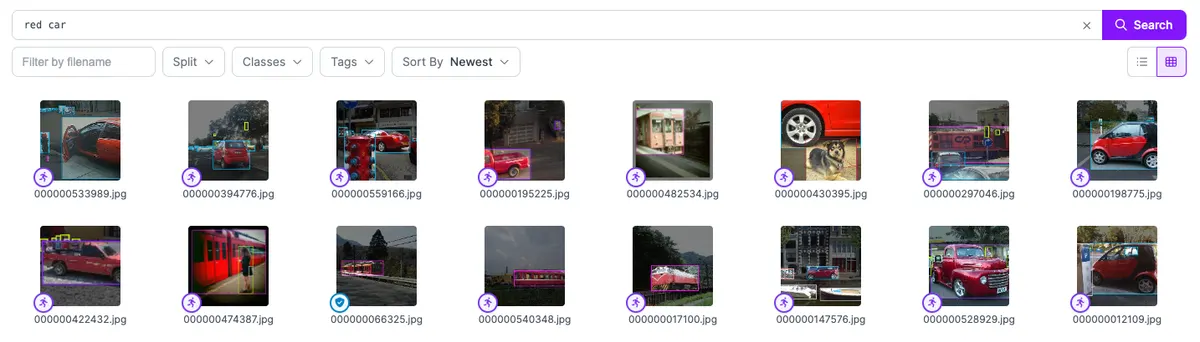
You can search for images by describing them. These queries will search for images most closely related to your search terms and can help you find images even when objects are not currently labeled.
Semantic search happens when you enter a text query without any filter selectors (ex: filename:)
Search by File Name
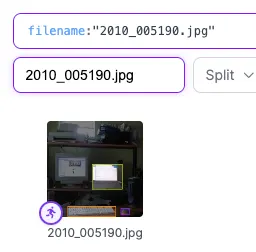
You can search for file names using the filename: filter or the file name textbox, which will create the query for you.
Search by Dataset Split
Search images by the dataset split (train, valid, test)
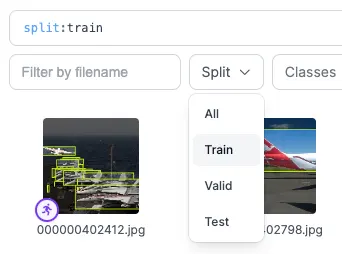
To reassign images to a different split, select them (or choose "Select all matching" from a search) and click "Change Dataset Split" in the bulk actions menu. Large selections process in the background.
Search by Upload Date
Filter images by the date they were first uploaded to Roboflow using the date: filter. The upload date is immutable and does not change when an image is edited, re-annotated, or moved between splits.
Use date:YYYY-MM-DD for an exact day, or combine comparison operators to search a range:
date>=2026-01-01 date<2026-02-01
Search Filters
Here are the filters available:
like-image:<IMAGE_ID>: Semantic search based on image contenttag: Filter by user-provided tags.filename: Runs a search for file names that match the provided file name. Use * at the beginning and end of a query to run a partial match.split: Filters by split (train, test, valid).job:<JOB_ID>: Shows images with the provided job ID.min-width:X: Shows images with a width greater than X.max-width:X: Shows images with a width less than X.min-height:X: Shows images with a height greater than X.max-height:X: Shows images with a height less than X.min-annotations:X: Filters images with more than the specified number of annotations.max-annotations:X: Shows images with fewer than the specified number of annotations.class:CLASS: Shows images that have at least 1 annotation with the provided label.date:YYYY-MM-DD: Filters by the immutable date an image was uploaded. Supports comparison operators (ex:date>=2026-01-01 date<2026-02-01).
Boolean Logic
Use AND, OR, NOT, and parentheses to combine multiple filters to form complex queries.
class:helmet AND NOT (tag:v1 OR tag:v2)
Inverted Filters
Add a minus sign before the filter to exclude images matching the filter.
class:helmet -class:vest
Numeric Class Filters
Filter by the number of labeled items in an image.
class:helmet=3 class:vest>=4
API
You can also search your dataset and images on Roboflow via the Search API.
HTTP API
You can search for images hosted on Roboflow using the REST API. There are two endpoints: a project-scoped /:workspace/:project/search endpoint, and a workspace-wide /:workspace/search/v1 endpoint that mirrors the web app dataset search.
Search Images in a Project
To search for images hosted on Roboflow, make POST request to the following API endpoint:
https://api.roboflow.com/:workspace/:project/searchHere is an example request to the API:
curl -X POST "https://api.roboflow.com/my-workspace/my-project-name/search?api_key=$ROBOFLOW_API_KEY" \
-H 'Content-Type: application/json' \
--data \
'{
    "like_image": "image_id",
    "in_dataset": true,
    "limit": 125
}'
This endpoint accepts the following values in the POST body:
{
     // when provided, provides results sorted by semantic similarity
     "like_image": string,

     // when provided, provides results sorted by semantic similarity
     "prompt": string,

     // defaults to 0
     "offset": int,

     // default to 50 (max: 250)
     "limit": int,

     // when present, filters images that have the provided tag
     "tag": string,

     // when present, filters images that have the provided class name
     "class_name": string,

     // when present, filters images that are in the provided project
     "in_dataset": string,

     // when present, returns only images that are in any batch
     "batch": boolean,

     // when present, returns only images present in the provided batch
     "batch_id": string,

     // when present, returns only images that are in any annotation job
     "annotation_job": boolean,

     // when present, returns only images present in the provided annotation job
     "annotation_job_id": string,

     // specify the fields to return, defaults to ["id", "created"]
     // options are ["id", "name", "annotations", "labels", "split", "tags", "owner", "url", "embedding", "created"]
     "fields": string[]
}
The search API will return a response with the following structure. The values available will vary depending on the additional fields you have specified:
{
    "offset": 0,
    "total": 292,
    "results": [
        {
            "id": "image123",
            "name": "humpbackwhale.jpg",
            "owner": "owner123",
            "url": "https://source.roboflow.com/owner123/image123/original.jpg",
            "annotations": {
                "count": 5,
                "classes": {
                    "whale": 1,
                    "fish": 4
                }
            },
            "labels": [],
            "tags": [
                "cam_x13"
            ]
        }
        // ... etc.
    ]
}
Search Images Across a Workspace
The Workspace Image Search API lets you list and search images within your workspace.
With this API, you can filter, sort, and perform semantic searches using a query string that is similar to the image search feature in the Roboflow web application.
Endpoint
To make a request to the API, send a POST request to the following endpoint:
https://api.roboflow.com/{WORKSPACE}/search/v1?api_key=API_KEYWhere WORKSPACE is your Workspace ID, and API_KEY is your API key.
Learn how to find your Workspace ID.
Learn how to find your API key.
Authentication
To access the API, you need to include your API key in the request. The API key should be passed as a query parameter.
Example: ?api_key={YOUR_API_KEY}
Request Format
Headers
Content-Type: application/json
Body Parameters
query(required): A non-empty string to filter, sort, or perform a semantic search. For example:"nighttime project:{my-project-url}"will filter for images in themy-project-urlproject and apply a semantic sort for images that matchnighttime. Returns a 400 error if missing or empty.pageSize: Number of results to return per page (default: 50).fields: List of fields to include in the response. Possible values are"tags","width","height","filename","aspectRatio","split","projects","annotations","labels","owner","url".
Example Request
curl --location 'https://api.roboflow.com/{WORKSPACE}/search/v1?api_key={API_KEY}' \
--header 'Content-Type: application/json' \
--data '{
    "query": "project:foo nightime",
    "pageSize": 10,
    "fields": ["tags", "width", "height", "filename", "aspectRatio", "split"]
}'
Response Format
The response is a JSON object containing the following fields:
results: An array of image objects.total: Total number of images found.continuationToken: A token for pagination.
Image Object Fields
depending on fields requested in the fields parameter:
id: Unique identifier of the image.projectData: Object keyed by project URL, containing project-specific data:split: Indicates the dataset split (e.g., "test"). Returned when"split"is infields.inDataset: Boolean indicating if the image is in the dataset. Returned when"projects"is infields.annotations: Annotation data for the image in this project, includingannotationGroup,classes, andclassCounts. Returned when"annotations"is infields.labels: Label data for the image in this project. Returned when"labels"is infields.
tags: Array of tags associated with the image.width: Width of the image in pixels.height: Height of the image in pixels.filename: Name of the image file.aspectRatio: Aspect ratio of the image.owner: The owner identifier of the image.url: Direct URL to the original image file.
Pagination and continuationToken
The continuationToken returned in the response lets you scroll between pages that match a search result. When the continuationToken is included in a subsequent request, it fetches the next set of results.
To use the continuationToken, include it in the request body of your next API call. This will retrieve the next page of results based on your original query.
Error Responses
400- Returned whenqueryis missing or empty, or when aproject:filter references a project that does not belong to your workspace.500- Internal server error.
Project and Dataset Filters
In addition to all the filters available in the in app dataset search, the workspace wide search also support filters for project and dataset . For example you can use a query like project:foo project:bar to find all images that are in both projects foo and bar.
A query like dataset:foowill return images in project foo that have been labeled and are added to the dataset in the project.
Python SDK
Project.search_all() returns a paginated iterator of search results across the images in a project. Search modes can be combined: a text prompt narrowed by class, an existing-image similarity search filtered to a single batch, etc.
import roboflow

rf = roboflow.Roboflow(api_key="YOUR_API_KEY")
project = rf.workspace().project("my-detector")

records = []
for page in project.search_all(
    prompt="mug on a desk",
    class_name="mug",
    in_dataset="my-detector",
    limit=100,
    fields=["id", "created", "name", "labels"],
):
    records.extend(page)

print(len(records))
Parameters
prompt(str, optional) - natural-language search prompt (semantic search via CLIP embeddings).like_image(str, optional) - image id to search by visual similarity instead of text.tag(str, optional) - only images carrying this tag.class_name(str, optional) - only images that have an annotation in this class.in_dataset(str, optional) - name of the dataset an image must belong to (restricts to images in that dataset, excluding batch / annotation-job staging areas).batch(bool, optional) andbatch_id(str, optional) - restrict to a specific upload batch.annotation_job(bool, kw-only) andannotation_job_id(str, kw-only) - restrict to a specific annotation job.offset(int, default0) - pagination offset.limit(int, default100) - page size.fields(list[str], optional) - request only the listed fields per result, to reduce response size.
search_all() is a generator - each iteration yields a page of up to limit results, automatically advancing the offset. For a one-shot single-page call, use project.search(...) with the same arguments.
Workspace-wide search
To search across every project in the workspace, use Workspace.search() / Workspace.search_all(). Unlike the per-project methods, these take a single RoboQL query string (for example "class:forklift", "tag:review", or free text for semantic CLIP search) plus optional page_size and fields. Each yielded page is a list of result rows, and the rows include the source project under a projects field.
records = []
for page in rf.workspace().search_all(query="class:forklift"):
    records.extend(page)
Export search results as a downloadable dataset
Workspace.search_export() runs a search and packages the results as a downloadable dataset (COCO / YOLO / VOC etc.). See Export Data (REST) for the underlying endpoint.
path = rf.workspace().search_export(
    query="forklift",
    format="coco",
    location="./forklift-search",
)
print(path)
CLI
You can search images across your workspace using RoboQL and optionally export matching results as a downloadable dataset.
Search
roboflow search "<query>"Options
| Flag | Description |
|---|---|
--limit | Max results to return (default: 50) |
--cursor | Continuation token for pagination |
--fields | Comma-separated list of fields to include |
Examples
Search for images with a specific tag:
roboflow search "tag:reviewed"Search for images containing a specific class:
roboflow search "class:person" --limit 100Export Search Results
Add --export to download matching images as a dataset:
roboflow search "<query>" --export -f <format> -l <location>Export Options
| Flag | Description |
|---|---|
--export | Enable export mode |
-f, --format | Annotation format (default: coco) |
-l, --location | Local directory to save the export |
-d, --dataset | Limit to a specific project |
-g, --annotation-group | Limit to a specific annotation group |
--name | Optional name for the export |
--no-extract | Keep zip file, skip extraction |
Examples
Export all reviewed images in COCO format:
roboflow search "tag:reviewed" --export -f coco -l ./reviewed-exportExport images from a specific project in YOLOv8 format:
roboflow search "class:car" --export -d my-project -f yolov8 -l ./carsJSON Output
roboflow search "tag:reviewed" --json{
"results": [...],
"total": 42,
"cursor": "next-page-token"
}Use the cursor value for pagination:
roboflow search "tag:reviewed" --cursor "next-page-token" --jsonMCP Server
Connect your AI agent to the MCP Server and it can find images with these tools:
| Tool | Description |
|---|---|
images_search | Search for images inside a project. |
images_workspace_search | Search images across the entire workspace using RoboQL. |