About
Exporting produces a downloadable snapshot of a dataset version in the annotation format you choose - YOLO, COCO, Pascal VOC, CreateML, and many others (see the full list in the formats directory). You can export from the Roboflow web app, the Python SDK, the REST API, or the CLI. Because dataset versions are built for training, exported images are compressed and class names are sanitized; see Export Behavior for details and for how to retrieve original-quality images.
Web App
You can export data from Roboflow at any time from the web interface.
To export data, first generate a dataset version in the Roboflow dashboard. You can do so on the "Versions" page associated with your project.
After you have generated a dataset, click "Export" next to your dataset version:
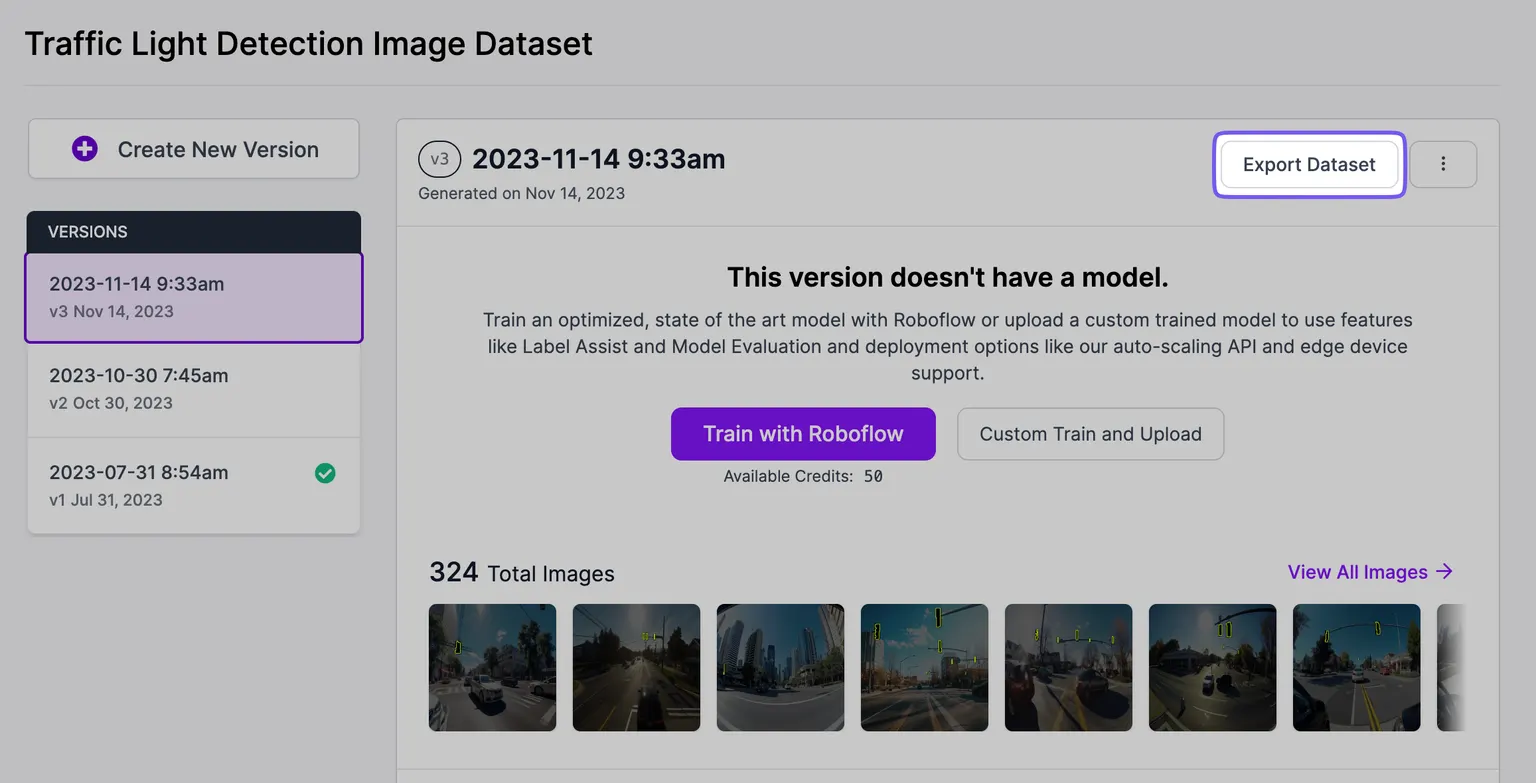
You can download your data in a wide variety of formats. You can see a full list of supported export formats in the "Export" tab of our formats directory.
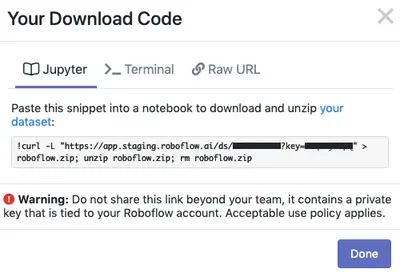
After selecting an export format, you can choose to either download the data as a .zip file, or as a curl link to download from the command line.
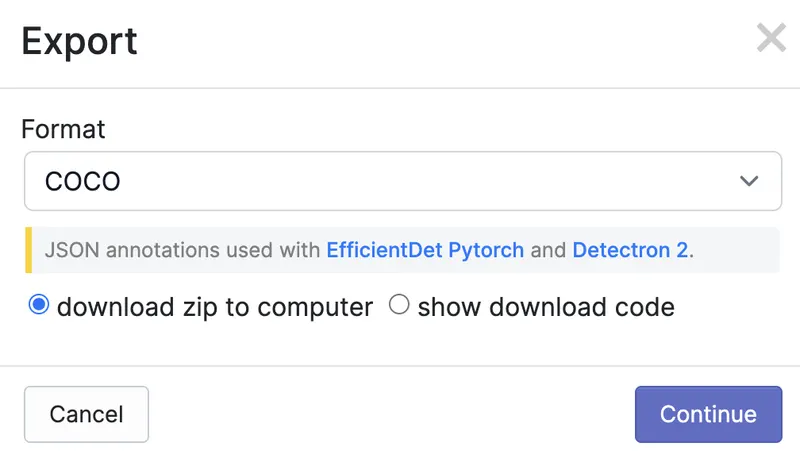
The curl and Python code will contain a private key unique to your account. Do not share this key!
HTTP API
/:workspace/:project/:version/:format is the route you should use to get the download link for an exported dataset in a specific format. You can use this in the Jupyter notebooks from our model library or your own custom training scripts.
The following endpoint returns an export value that contains a link key with a URL from which you can download a dataset:
<pre class="language-bash"><code class="lang-bash"><strong>curl "https://api.roboflow.com/roboflow/chess-sample-4ckfl/1/yolov5pytorch?api_key=$ROBOFLOW_API_KEY" </strong></code></pre>
Here is an example payload returned by the endpoint:
{
    "workspace": {
        "name": "Roboflow",
        "url": "roboflow",
        "members": 7
    },
    "project": {
        "id": "roboflow/chess-sample-4ckfl",
        "type": "object-detection",
        "name": "Chess Sample",
        "created": 1630335544.592,
        "updated": 1630335741.988,
        "images": 12,
        "unannotated": 3,
        "annotation": "pieces",
        "public": false,
        "splits": {
            "test": 1,
            "train": 9,
            "valid": 2
        },
        "classes": {
            "white-bishop": 11,
            "black-king": 8,
            "black-knight": 11,
            "white-queen": 7,
            "black-bishop": 8,
            "white-rook": 10,
            "black-rook": 10,
            "white-king": 8,
            "black-queen": 4,
            "black-pawn": 37,
            "white-pawn": 34,
            "white-knight": 10
        }
    },
    "version": {
        "id": "roboflow/chess-sample-4ckfl/1",
        "name": "augmented",
        "created": 1630335698.746,
        "images": 30,
        "splits": {
            "train": 27,
            "test": 1,
            "valid": 2
        },
        "model": {
            "id": "chess-sample-4ckfl/1",
            "endpoint": "https://serverless.roboflow.com/infer/chess-sample-4ckfl/1",
            "start": 1630335799.682,
            "end": 1630337523.889,
            "fromScratch": false,
            "tfjs": true,
            "oak": true,
            "map": "62.87",
            "recall": "85.29",
            "precision": "23.44"
        },
        "preprocessing": {
            "grayscale": {
                "enabled": true
            },
            "resize": {
                "width": 416,
                "height": 416,
                "enabled": true,
                "format": "Stretch to"
            },
            "auto-orient": {
                "enabled": true
            }
        },
        "augmentation": {
            "rotate": {
                "enabled": true,
                "degrees": "5"
            },
            "exposure": {
                "enabled": true,
                "percent": "25"
            },
            "noise": {
                "enabled": true,
                "percent": "2"
            },
            "image": {
                "versions": "3",
                "enabled": true
            },
            "flip": {
                "horizontal": true,
                "enabled": true,
                "vertical": false
            },
            "brightness": {
                "enabled": true,
                "brighten": true,
                "percent": "25",
                "darken": true
            },
            "crop": {
                "percent": 30,
                "enabled": true,
                "min": 0
            }
        },
        "exports": [
            "yolov5pytorch"
        ]
    },
    "export": {
        "format": "yolov5pytorch",
        "link": "https://app.roboflow.com/ds/XXXXXXXXXX?key=XXXXXXXXXX"
    }
}
Export Format Options
Here are the settings options available for dataset export:
| Object Detection | Single-Label Classification | Multi-Label Classification | Instance Segmentation | Semantic Segmentation | Keypoint Detection |
|---|---|---|---|---|---|
| clip | folder | multiclass | coco-segmentation | coco-segmentation | coco |
| coco | clip | folder | clip | png-mask-semantic | yolov5pytorch |
| createml | clip | coco | |||
| darknet | createml | ||||
| multiclass | darknet | ||||
| tensorflow | multiclass | ||||
| tfrecord | tensorflow | ||||
| voc | tfrecord | ||||
| yolokeras | voc | ||||
| yolov5pytorch | yolokeras | ||||
| yolov7pytorch | yolov4pytorch | ||||
| mt-yolov6 | yolov4scaled | ||||
| retinanet | yolov5-obb | ||||
| benchmarker | yolov5pytorch | ||||
| yolov7pytorch | |||||
| mt-yolov6 | |||||
| retinanet | |||||
| benchmarker |
Python SDK
You can both generate versions and export datasets with the Python package.
To create a ZIP file of a dataset for export from the Python SDK, begin by retrieving a specific version from a project:
version = project.version(version_number)Then download the dataset directly:
version.download(model_format="yolov5", location="./downloads")The download method handles export creation automatically if needed, extracts the ZIP file to your specified location, and returns an object describing the dataset.
For generating a version before export, see Create a Dataset Version.
Download Original-Quality Images
Exported images are compressed for training (see Export Behavior). To download the original, full-resolution images for an entire dataset, use the Image Search API:
import os
import requests
from roboflow import Roboflow

rf = Roboflow(api_key="YOUR_API_KEY")

project = rf.project("my-dataset-id")

records = []

for page in project.search_all(
    offset = 0,
    limit = 100,
    in_dataset = True,
    batch = False,
    fields = ["id", "name", "owner"],
):
    records.extend(page)

print(f"{len(records)} images found")

for record in records:
        base_url = "https://source.roboflow.com"
        url = f"{base_url}/{record['owner']}/{record['id']}/original.jpg"

        try:
            response = requests.get(url)
            response.raise_for_status()

            # Save to temp directory
            save_path = os.path.join('temp_images', record['name'])
            with open(save_path, 'wb') as f:
                f.write(response.content)

            print(f"Downloaded: {record['name']}")

        except requests.exceptions.RequestException as e:
            print(f"Error downloading image: {e}")
CLI
You can export data through the Roboflow CLI using the following command:
roboflow download <datasetUrl>Find more information about this CLI command in our docs.
MCP Server
Connect your AI agent to the MCP Server and it can export a version with these tools:
| Tool | Description |
|---|---|
versions_export | Check or trigger a dataset export for a version. |
versions_get | Get version info including splits and its trainings. |
Export Behavior
Dataset versions are designed to be used as training data for computer vision models. Therefore, we make some optimizations to improve the training experience and performance of the models.
Image Compression
To prevent training slowdowns, we compress images at a level that maintains a balance between training speed and resolution needed for sufficient model performance.
If you're looking to download the original quality image, you can do so by clicking on a image on your dataset and selecting "Download Image".
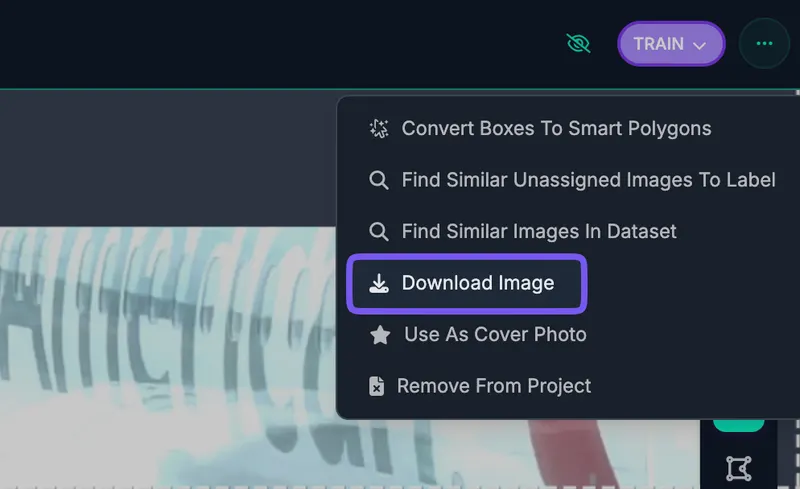
You can also access your images programmatically via the Image Details API. The image.urls.original property states the link to the original quality image.
To download every original-quality image in a dataset programmatically, see Download Original-Quality Images in the Python SDK section.
Accepted Characters
To prevent issues from arising during training, we sanitize class names both at upload/import and export. At export, we perform the following:
- Class names are converted to ASCII
- Where possible, characters are anglicized (ex:
ütou) - Otherwise, they are replaced with a dash (
-)
- Where possible, characters are anglicized (ex: