About
Project Folders improves the organization and security of projects within your workspace. Folders allow you to group one or more projects into distinct categories, which improves your ability to navigate, organize, and manage your projects. Additionally, for workspaces with SSO enabled, you can restrict access to projects within a folder to certain team members, which enhances the security of your data.
Web App
Viewing Folders
From your workspace view, any Project Folders you have will appear at the top. Your workspace can have one or more Project Folders, and each Project Folder can contain one or more Projects.
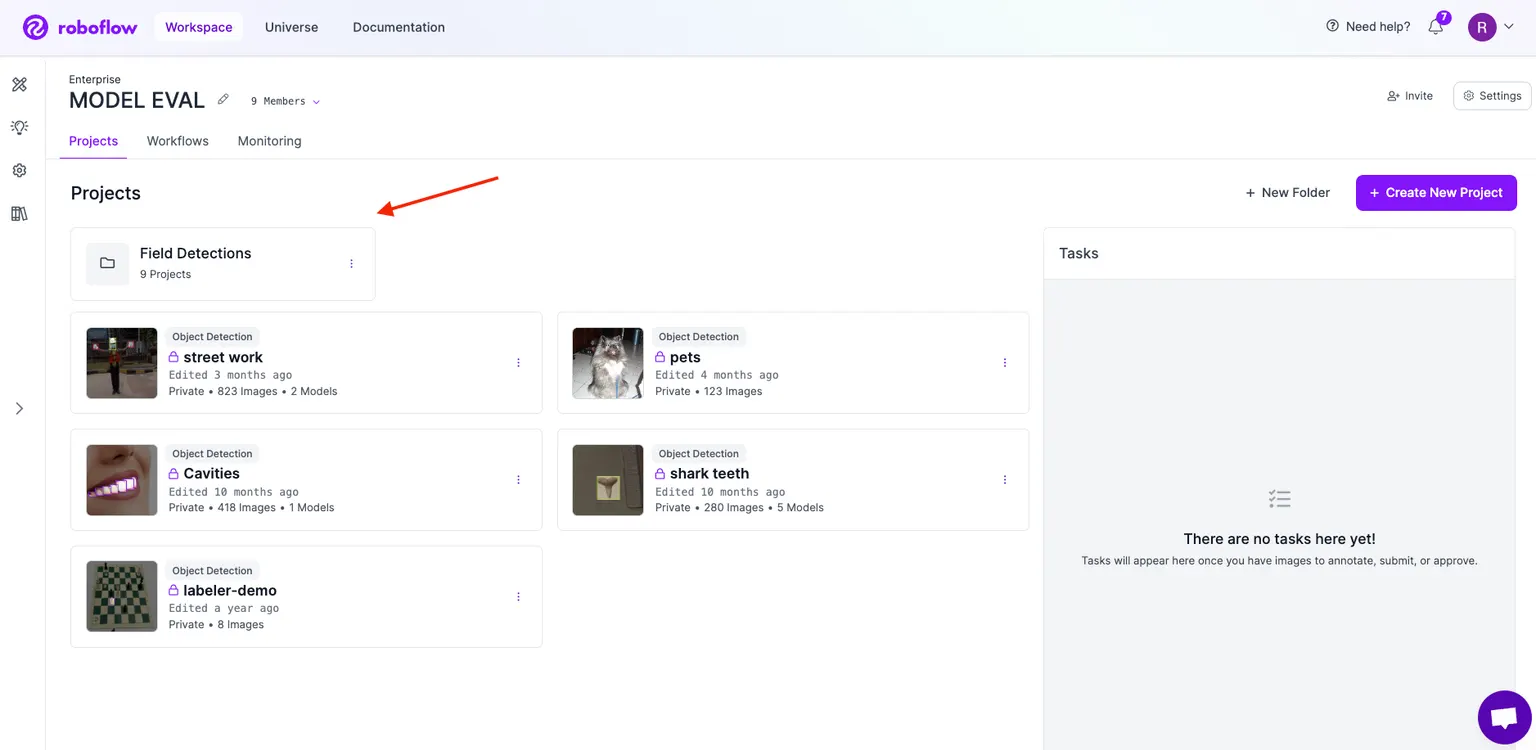
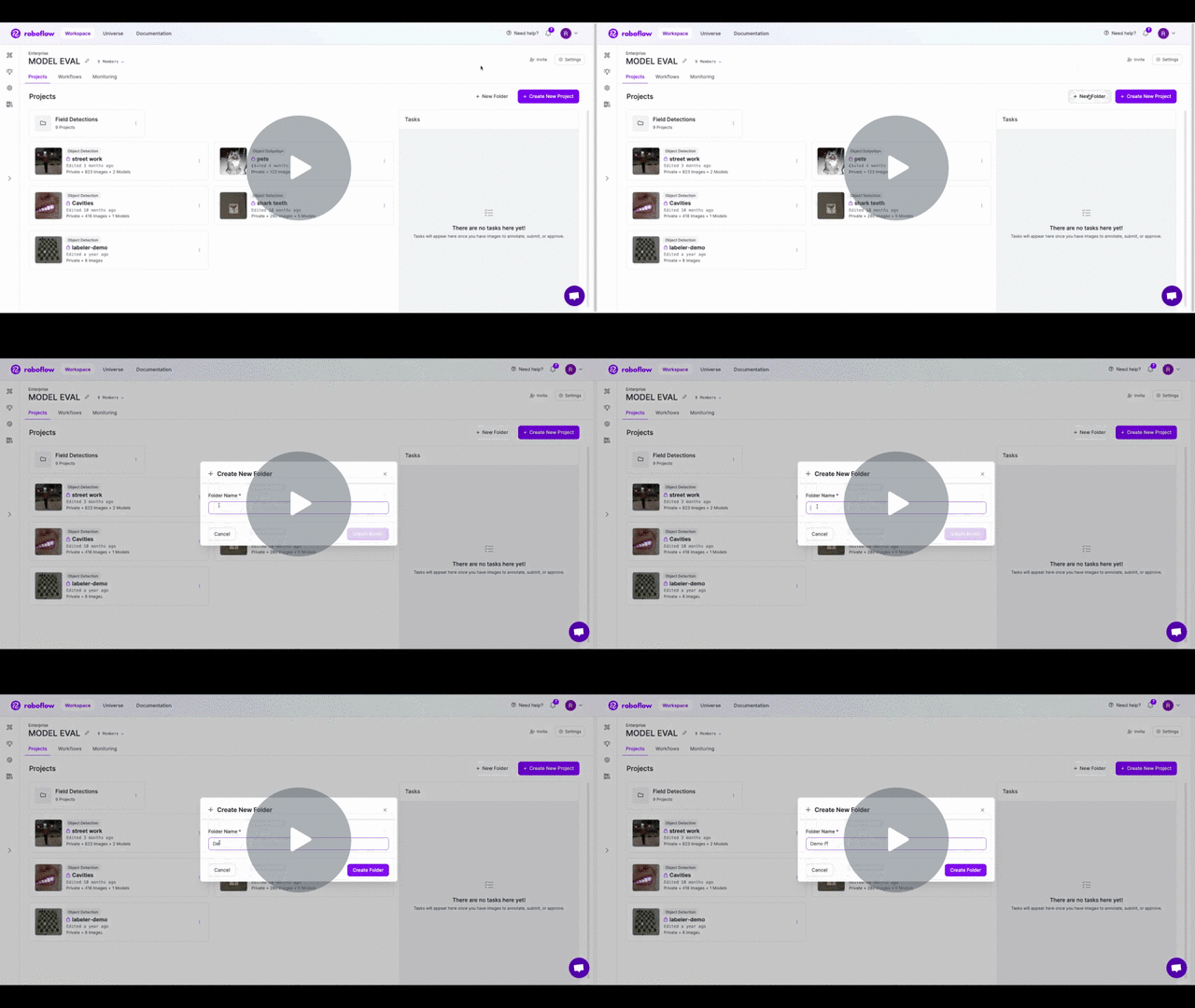
Creating a Folder
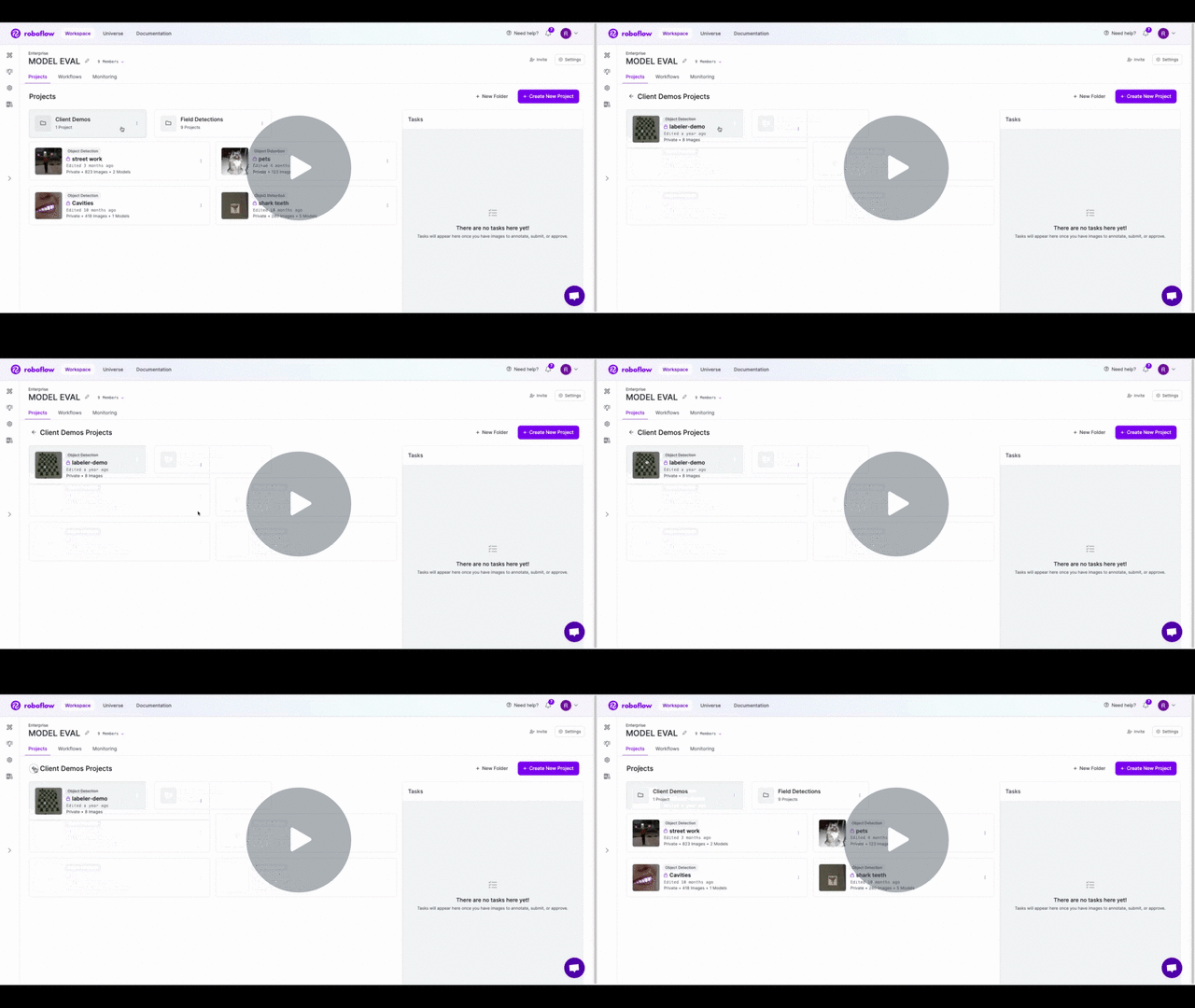
To create a new folder, click the "+ New Folder" button in the top right. Provide a name for your folder and click "Save". The page will navigate to your project folder where you can create a new project. Any project created from the project folder view will automatically added to that folder.
[Roboflow Documentation] Project Folders - Create Project - Watch Video
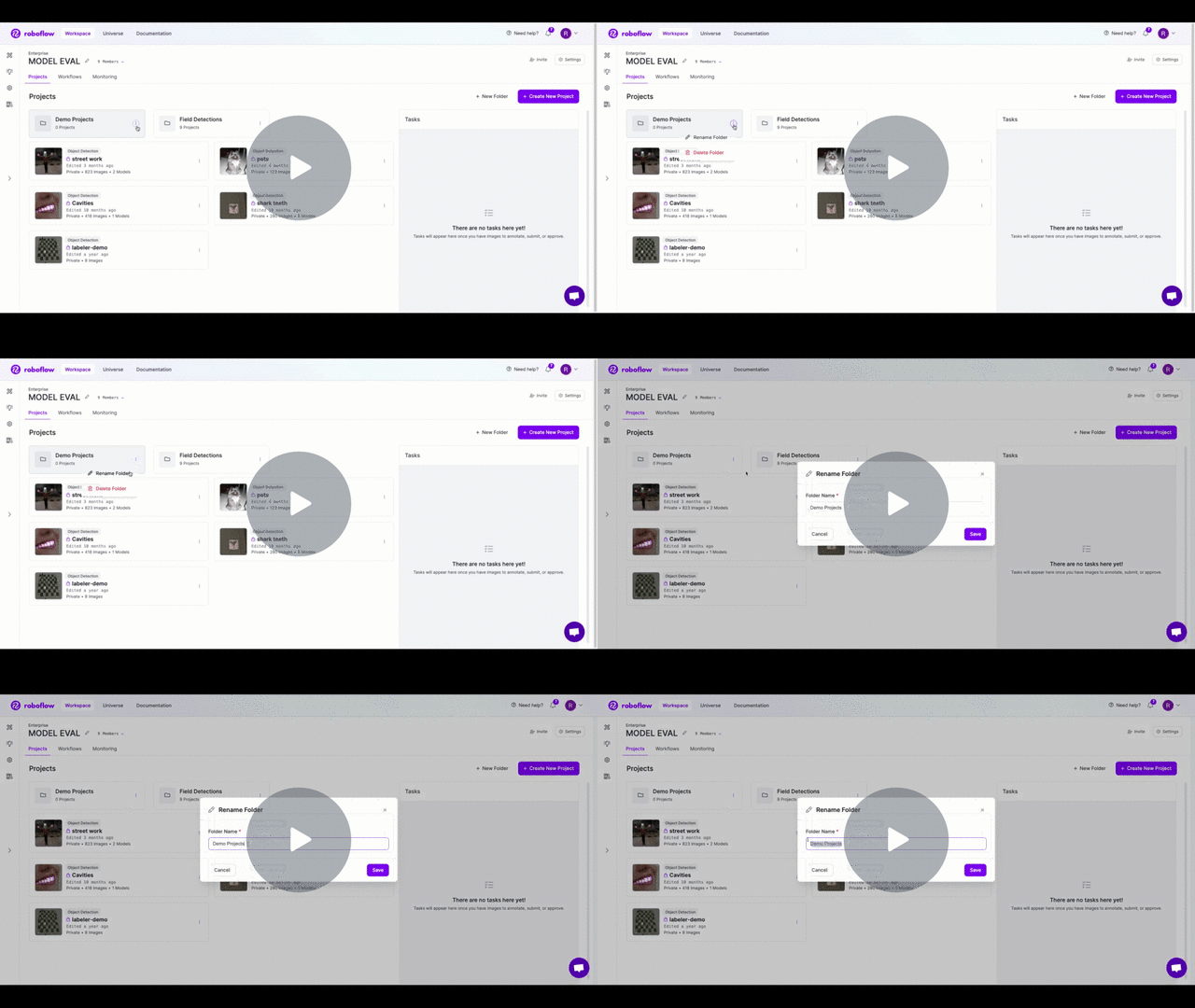
Renaming a Folder
To rename a folder, click on the dropdown menu (3 dots) on the project folder. Select the "Rename" option, and then provide the new name for your project. After clicking "Save", your folder will have its new name.
[Roboflow Documentation] Project Folders - Rename Folder - Watch Video
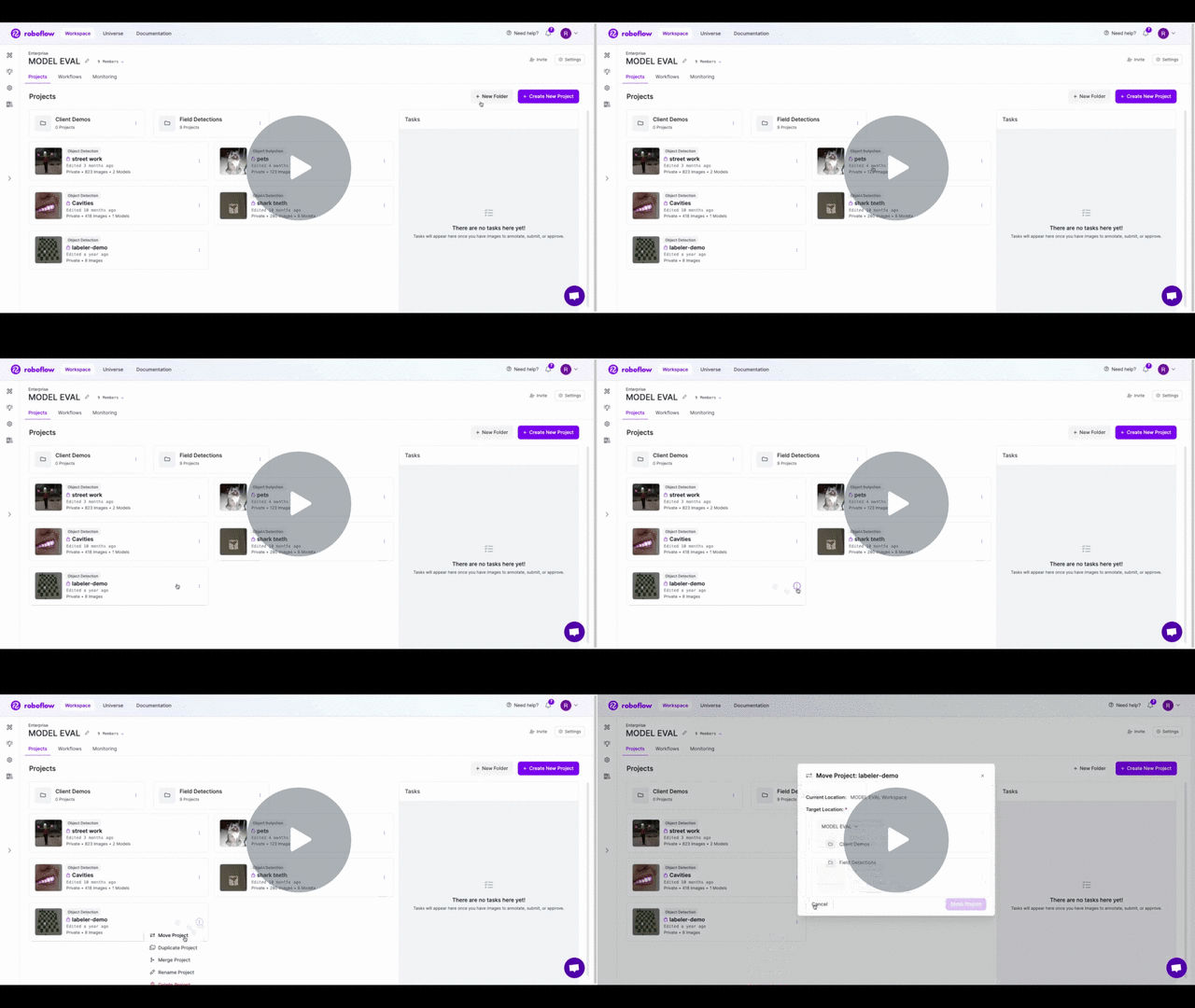
Managing Projects in Folders
You can move existing projects into a folder. To move a project, click on the project's dropdown menu (3 dots) and select "Move Project". You will then see a pop up where you can select the new target destination. If you do not have any project folders, you can add one by clicking the "New Folder" button. Otherwise, you can select any of your existing folders as the target location. If you want to move your project out of a folder, you can select your workspace's name.
[Roboflow Documentation] Project Folders - Move Project - Watch Video
Deleting a Folder
You can delete a folder by clicking the dropdown menu (3 dots) on the project folder and selecting the "Delete" option (this action cannot be undone). Deleting a folder will not delete the projects in the folder, it will move those projects back to the workspace level. Any Workflows in the folder also move back to the workspace level and stay accessible.
[Roboflow Documentation] Project Folders - Delete Folder - Watch Video
Custom Folder Permissions
Folders provide a great way to organize and manage your projects, but they also enable you to set custom permissions for a subset of your folders. For example, if you only want a few members of your workspace to access projects in a particular folder, you can accomplish that with Roboflow's SSO integration. To get started, please contact support and we will be happy to get you set up.
Project Folders API
Project Folders can be managed programmatically using the Roboflow API. For details on available endpoints, view the Project Folders API documentation.
HTTP API
You can manage your Project Folders programmatically using the Roboflow API.
Note: This feature is only available for Enterprise workspaces.
Note: Your api_key must be sent in all requests. The api_key can be sent as a query parameter or as a top level attribute in the post body.
Creating a Project Folder
POST /:workspace/groups
Creates a Project Folder.
Headers
| Name | Value |
|---|---|
| Content-Type | application/json |
Body
| Name | Type | Description | Required |
|---|---|---|---|
api_key | string | The api key of the workspace where the Project Folder should be created | true |
name | string | The name of the Project Folder | false |
projects | Array | A list of ids of projects that should be moved to this folder | false |
external_id | string | The id of this Project Folder in an external system | false |
auth_groups | Map<"read" | "write , Array | A list of permission groups that should have read/write access to the projects within this Folder. (Note: please contact Roboflow before using this feature as it requires additional set up) | false |
Example Request
curl --location 'https://api.roboflow.com/<workspace_id>/groups?api_key=$ROBOFLOW_API_KEY' \
--header 'Content-Type: application/json' \
--data '{
    "name": "Client Demos",
    "projects": ["client-demo-project-1", "another-project-id"],
    "external_id": "jfowke123jfiowje",
    "auth_groups": {
        "read": [],
        "write": []
    }
}'
Response
{
  "id": "<project_folder_id>"
}{
"error": "Invalid request"
}Get Project Folder
GET /:workspace/groups/:folderId
Retrieves a Project Folder by ID
Headers
| Name | Value |
|---|---|
| Content-Type | application/json |
Query
| Name | Type | Description | Required |
|---|---|---|---|
api_key | string | API Key of workspace where Project Folder exists | true |
Example Request
curl --location 'https://api.roboflow.com/<workspace_id>/groups?api_key=$ROBOFLOW_API_KEY' \
--header 'Content-Type: application/json'
Response
{
  "data": Array<#ProjectFolder>
}
The project folder specified by the folderId param does not exist, or no project folders exist in the workspace that belongs to the provided api key
Update a Project Folder
POST /:workspace/groups/:folderId
Updates a Project Folder's properities
Headers
| Name | Value |
|---|---|
| Content-Type | application/json |
Query
| Name | Required | ||
|---|---|---|---|
returnUpdated | boolean | When set, returns the full resource payload in the response | false |
Body
| Name | Type | Description | Required |
|---|---|---|---|
api_key | string | The api key of the workspace where the Project Folder should be created | true |
name | string | The name of the Project Folder | false |
projects | Array | A list of ids of projects that should be moved to this folder | false |
external_id | string | The id of this Project Folder in an external system | false |
auth_groups | Map<"read" | "write , Array | A list of permission groups that should have read/write access to the projects within this Folder. (Note: please contact Roboflow before using this feature as it requires additional set up) | false |
Example Request
curl --location 'https://api.roboflow.com/<workspace_id>/groups/<folder_id>?api_key=$ROBOFLOW_API_KEY&returnUpdated=true' \
--header 'Content-Type: application/json' \
--data '{
    "name": "A new name"
}'
Response
No Content. Resource was updated successfully
// Only when query param ?returnUpdated=true
{
    "data": Array<#ProjectFolder>
}
Add Project(s) to Folder
PATCH /:workspace/groups/:folderId/projects
Adds one or more projects to an existing folder
Headers
| Name | Value |
|---|---|
| Content-Type | application/json |
Body
| Name | Type | Description | Required |
|---|---|---|---|
projects | Array | A list of project ids to add to the Project Folder | true |
Example Request
curl --location --request PATCH 'https://api.roboflow.com/<workspace_id>/groups/example-folder-id/projects?api_key=$ROBOFLOW_API_KEY' \
--header 'Content-Type: application/json' \
--data '{
    "projects": ["dog-breeds-mi53"]
}'
Response
No Content. Project was added to the group successfully
Remove Project(s) to Folder
DELETE /:workspace/groups/:folderId/projects
Removes one or more projects from an existing folder and places it back into the top level workspace
Headers
| Name | Value |
|---|---|
| Content-Type | application/json |
Body
| Name | Type | Description | Required |
|---|---|---|---|
projects | Array | A list of project ids to remove from the Project Folder | true |
Example Request
curl --location --request PATCH 'https://api.roboflow.com/<workspace_id>/groups/example-folder-id/projects?api_key=$ROBOFLOW_API_KEY' \
--header 'Content-Type: application/json' \
--data '{
    "projects": ["dog-breeds-mi53"]
}'
Response
No Content. Project was removed from the group successfully
Delete Project Folder
DELETE /:workspace/groups/:folderId
Deletes a project Folder. All projects within the folder will be placed back into the top level workspace and not deleted.
Headers
| Name | Value |
|---|---|
| Content-Type | application/json |
Example Request
<pre><code><strong>curl --location --request DELETE 'https://api.roboflow.com/<workspace_id>/groups/example-folder-id/projects?api_key=<api_key>'
</strong>--header 'Content-Type: application/json' </code></pre>
Response
No Content. Project Folder was successfully deleted
Python SDK
Project folders organize the projects in a workspace into nested groups. The Python SDK exposes folder listing and creation directly on Workspace; update and delete are available through the low-level rfapi adapter.
Project folders are an Enterprise feature. The folder endpoints return 403 for non-Enterprise workspaces.
List folders
import roboflow

rf = roboflow.Roboflow(api_key="YOUR_API_KEY")
workspace = rf.workspace()

folders = workspace.list_folders()
for folder in folders.get("data", []):
    print(folder["id"], folder["name"])
Create a folder
folder = workspace.create_folder(
    name="Training Data",
    parent_id=None,                              # optional, for nesting
    project_ids=["my-detector", "other-project"], # optional, populate at creation time
)
print(folder["id"])
Parameters
name(str) - folder name shown in the web app.parent_id(str, optional) - id of an existing folder to nest under. Omit for a top-level folder.project_ids(list[str], optional) - project ids to move into the folder at creation time.
Get a folder
from roboflow.adapters import rfapi

folder = rfapi.get_folder("YOUR_API_KEY", workspace.url, "<folder-id>")
print(folder)
Rename or update a folder
from roboflow.adapters import rfapi

rfapi.update_folder(
    "YOUR_API_KEY",
    workspace.url,
    "<folder-id>",
    name="New Name",
)
Delete a folder
from roboflow.adapters import rfapi

rfapi.delete_folder("YOUR_API_KEY", workspace.url, "<folder-id>")
Deleting a folder moves its projects back to the top level - projects themselves are not deleted.
CLI
You can create, list, update, and delete workspace folders from the command line.
List Folders
roboflow folder listWith JSON output:
roboflow folder list --jsonGet Folder Details
roboflow folder get <folder-id>roboflow folder get <folder-id> --jsonCreate a Folder
roboflow folder create "Training Data"Options
| Flag | Description |
|---|---|
--parent | Parent folder ID (for nesting) |
--projects | Comma-separated project IDs to include |
Example with projects:
roboflow folder create "Q2 Models" --projects my-project,other-projectUpdate a Folder
Rename a folder:
roboflow folder update <folder-id> --name "New Name"Delete a Folder
roboflow folder delete <folder-id>JSON Output
All folder commands support --json for structured output:
roboflow folder list --json | jq '.[].name'
roboflow folder create "My Folder" --json
Exit codes: 0 = success, 1 = error, 2 = auth error, 3 = not found.