Annotation attributes (also referred to as "subclasses") can be added to your annotations using class specific attributes. These attributes are included in your dataset exports for object detection and segmentation projects.
This feature is exclusively available for Enterprise customers. See our pricing page to learn more about how to access this feature.
Create an Attribute
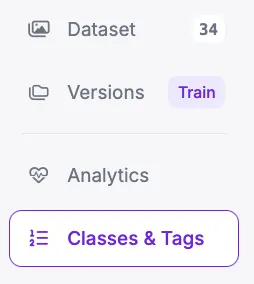
To create an Annotation Attribute, first click "Classes & Tags" in your Project sidebar:
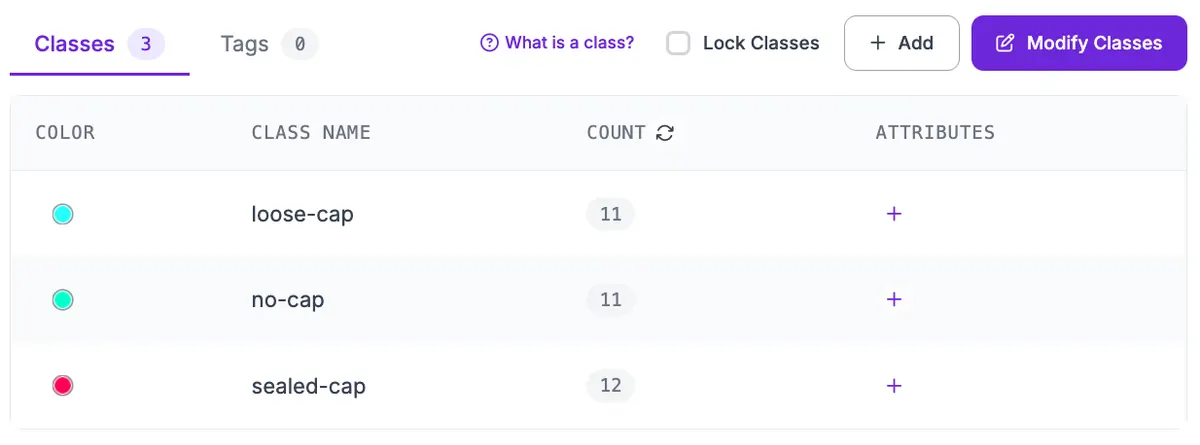
On the Classes & Tags page you can see all of your dataset classes. You can also add Annotation Attributes to a class that you can use on images in your dataset.
To add an Annotation Attribute, click the plus icon in the "Attributes" column of the class to which you want to add the attribute:
A window will appear in which you can set a name for the Annotation Attribute:
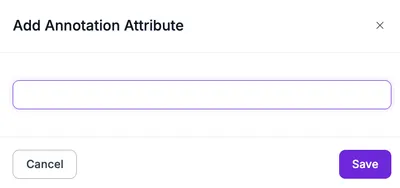
Click "Save" to save the Annotation Attribute.
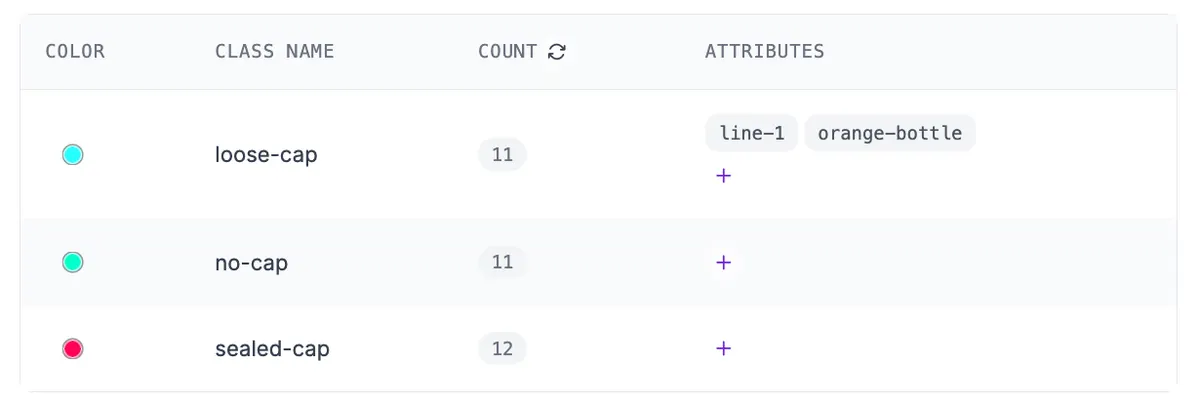
Your Attribute will then show up next to the corresponding class:
Add an Attribute to an Annotation
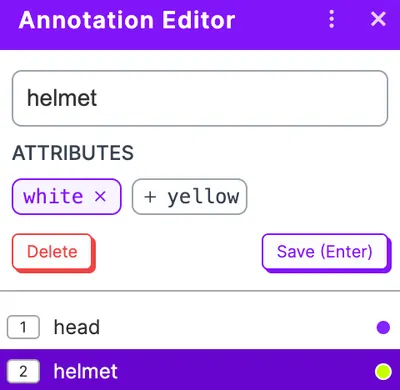
After creating an annotation you can add attributes to your annotation in the Class Selector.
Remove an Attribute
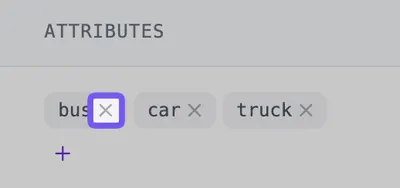
To remove an Annotation Attribute from a class, hover over the attribute tag in the "Attributes" column on the Classes & Tags page and click the cross icon. Confirm the removal in the window that appears.
Removing an attribute only takes it out of the class's attribute list for new annotating. Existing annotations that already reference the attribute keep their value and remain in your dataset exports.
Export Annotations with Attributes
To export annotations with attributes from Roboflow, refer to our Export Data guide.
Annotation attribute information is only included in COCO and COCO Segmentation formats.