About
You can train computer vision models in the Roboflow interface.
Roboflow offers two training options:
- Roboflow Custom Train: Our flagship training service, ideal for creating production-ready models.
- Neural Architecture Search: Discover novel model architectures and fine tune at the same time.
Also, when you approve your first batch of image annotations, a Roboflow Instant Model is automatically trained. These models can be used immediately for auto labeling or deployment.
Models trained on Roboflow can be deployed with Inference, our on-device inference server, or in the cloud using our Serverless Cloud API with Workflows, Batch Processing with Workflows, or with your model API endpoint.
Read our licensing guidance to learn more about how models trained on Roboflow are licensed.
Web App
Train a Model
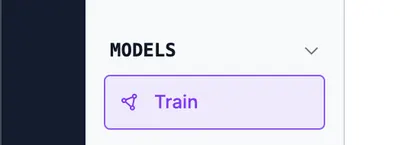
To train a computer vision model, visit "Train" in the project navigation.
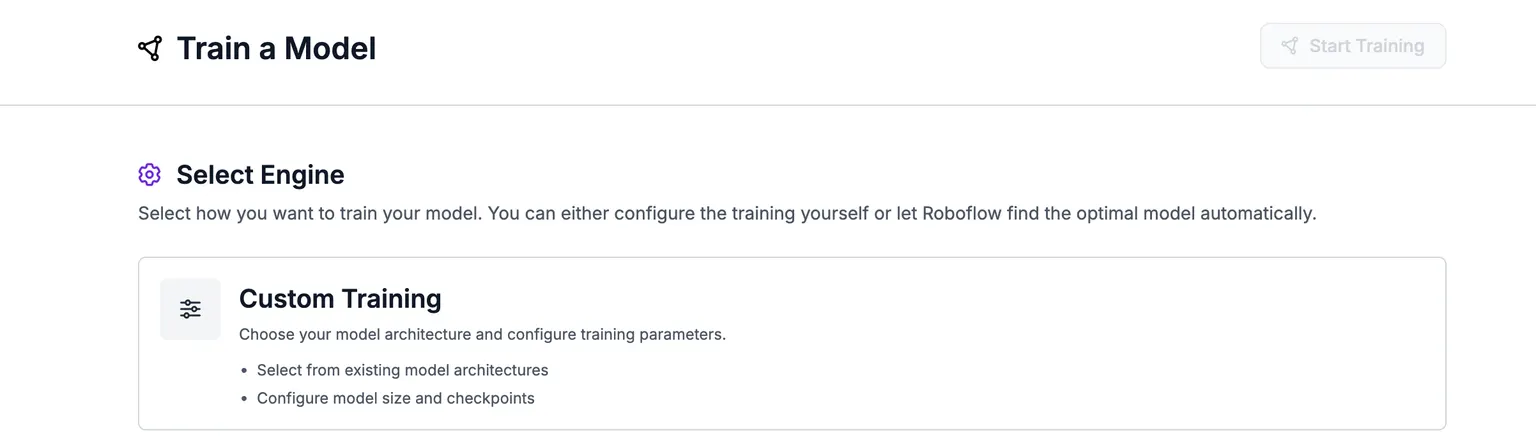
Click the "Custom Training" button to start configuring a training job:
Neural Architecture Search (NAS)
For object detection and instance segmentation projects, you can use Neural Architecture Search (NAS) instead of selecting a single model architecture. NAS automatically trains and evaluates multiple model configurations, then recommends the best one based on your accuracy and latency requirements.
To use NAS, select the NAS option when choosing a training engine. NAS requires at least 15 validation images.
For more details on NAS training charts, see View Training Results.
Select a Model Architecture
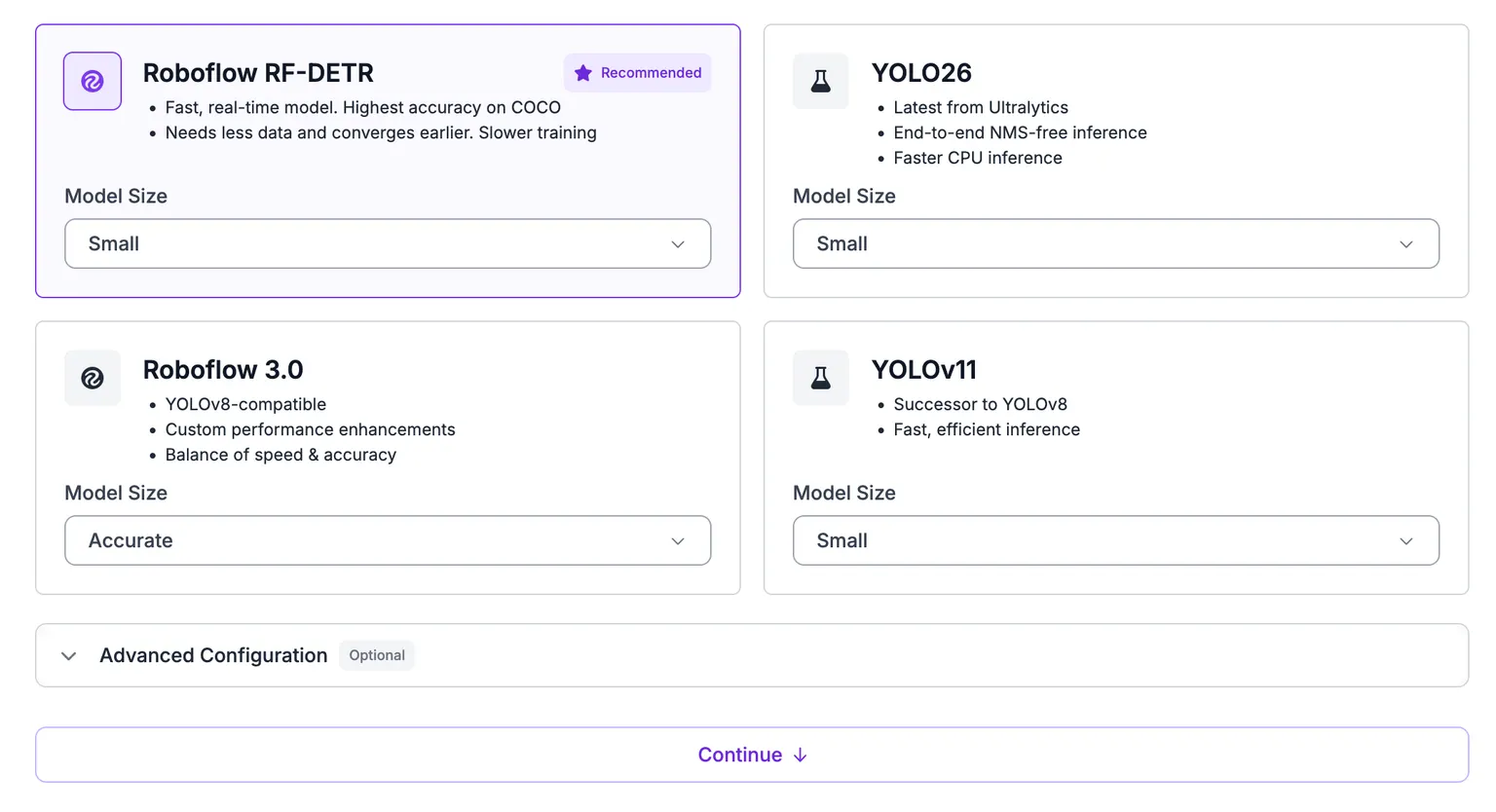
Next, you need to select a model architecture and size. This is the machine learning technology used to train your model.
The model architectures you can train depend on the type of project you have set up. Refer to the Supported Models table for details on training compatibility.
For object detection, RF-DETR offers the best accuracy. For instance segmentation, RF-DETR Seg (Preview) offers the best accuracy. For keypoint detection, RF-DETR Keypoint (Preview) is also available.
Model sizes will vary depending on the architecture of the model you choose. For example, RF-DETR - a state-of-the-art object detection model - offers Nano, Small, Medium, and Base. Medium, Large, and Extra Large are available only to paid users. Training a SAM3 model is available on paid plans that include usage-based billing. From there, SAM3 shows in the architecture list with a "Request Feature" button you can use to gain access.
Choose an architecture available for your project type, then click "Continue":
Select a Checkpoint
After selecting a training option, you will be asked whether you want to train from a checkpoint. The tabs below show the configuration options for each model type.
You have three options:
- Train from a Previous Checkpoint: Ideal for when you already have a working model that you want to improve.
- Train from Public Checkpoint: Ideal for your first model, or for when a previous training run did not achieve the expected results.
- Train from Random Initialization: For advanced users only, this option gives you a blank slate from which to train. Most users see worse results when using this option.
For Classification and Semantic Segmentation models, only one checkpoint is available.
How do I choose a training option?
We recommend training from a Public Checkpoint for new object detection projects. By default, we offer training from a model trained on the Microsoft COCO dataset. For classification and semantic segmentation, we only support training from an ImageNet.
You can train from checkpoints based on projects hosted on Universe (object detection only). To do so, first star a project in Universe. Then, the project will be available as a training checkpoint in the Roboflow web application.
Furthermore, you can train from a checkpoint based on a previous version of a model (object detection, instance segmentation, and keypoint detection only). This method allows for a faster training process. We only recommend training from a previous checkpoint for your model if your model achieves strong performance).
Training from a Checkpoint means that you are employing Transfer Learning. Transfer Learning will initialize your model training from the model you have selected. This can help to reduce training time, and provide you with improved training scores.
Training from Scratch means that you are not employing Transfer Learning. This will initialize your model training with randomized initial values for the model weights.
Set a Credit Cap
You can limit how many credits one training run spends. Enter a number in "Credit Cap" in the training options, or leave it blank to run without a cap. Caps require a plan with usage-based billing.
When a run reaches its cap, Roboflow stops it and keeps the model weights, the same as stopping training early. While the job runs, the training shows how many of the capped credits it has used.
Each model has a minimum cap, shown under the input. The minimum is the cost of the shortest run that can still produce a model, so a smaller cap is rejected. A cap below the cost estimate is allowed, but the run will likely stop before it finishes.
Neural Architecture Search bills training and architecture search separately, so it has two caps: "Training Credit Cap" and "Search Credit Cap". Setting one leaves the other phase uncapped.
If a capped run stops with credits to spare, you can continue it. The new run can spend what is left under the cap. If less is left than the model's minimum, start a new training instead.
Start the Training Job
Once you have chosen a Checkpoint from which to train, click Start Training.
Your dataset will then be zipped and prepared for training in the Roboflow cloud.
Before training starts, the training summary shows estimated duration and credit cost:
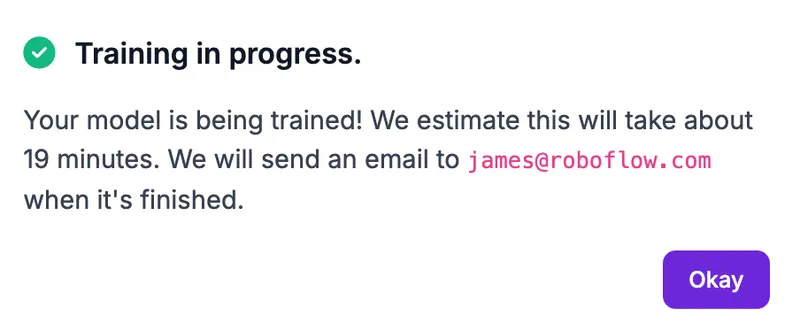
The larger the dataset, and the larger the images in your dataset, the longer it will take for your model to train.
You will receive an email when the training process finishes. In most cases, this should be under 24 hours.
Pricing
Training on Roboflow is priced on the length of the train job. You can see more information on our credits page.
If you are a student or researcher and need credits for a project on which you are working, you can apply for additional credits.
Train From the Agent
You can start the same training run from Roboflow Agent without leaving the chat. Open a project tab in the Agent and click "Train". The training steps open inside the tab: pick a training engine, then an architecture and size, then a dataset version.
If the version you pick has not been exported yet, the Agent prepares the export first and shows its progress. Training starts when the export is ready. If the project has no version, you can create one from the same screen.
To train this way you need the Train Model and List Versions permissions.
Train Multiple Models on a Version
You can train more than one model on the same dataset version to compare architectures or sizes against identical data. Each training runs and is evaluated independently, and the version page lists every training so you can switch between them.
HTTP API
Once a project has a generated dataset version, you can schedule a training job that produces a hosted model.
Start a Training Job
Kick off a training run on a dataset version. The dataset version is part of the URL path.
POST https://api.roboflow.com/:workspace/:project/:version/trainBody
| Name | Type | Description | Required |
|---|---|---|---|
model_type | string | Architecture identifier (e.g. rfdetr-nano, yolov8, yolov11). Pass an invalid value to receive the full list back as an error. | true |
checkpoint | string | Optional checkpoint to continue training from. | false |
epochs | integer | Number of epochs. | false |
speed | string | fast (default) or accurate. accurate is a paid feature. | false |
trainingCreditCap | number | Most credits the training may spend before it is stopped. Must be at least the model's minimum. | false |
nasMiningCreditCap | number | Most credits the NAS architecture search may spend. Only valid for NAS model types. | false |
curl "https://api.roboflow.com/my-workspace/my-detector/3/train?api_key=$ROBOFLOW_API_KEY" \
  -X POST \
  -H "Content-Type: application/json" \
  -d '{"model_type": "rfdetr-base"}'
Training runs asynchronously. The response confirms that the job was queued, not that it has finished. To check progress, poll training results or watch the version's model field for the trained model to appear.
If the version is not ready to train, the request returns 400 with a code and a remedy field. The remedy names the fix, so a script or agent does not have to read the message: rebalance (enough images, but they sit in the wrong splits), upload (the dataset needs more images), annotate (images need labels), regenerate (version generation failed, so generate a new version), or wait (a rebalance or generation is still running). Errors that are not about the data, such as plan limits, have no remedy.
Plan limits apply here the same way they do in the web app. If your plan does not include the architecture you ask for, the request returns 400 and no job starts: nas_not_available_for_plan for NAS model types, sam3_not_available_for_plan for SAM3 model types.
A credit cap below the model's minimum, or any cap on a workspace that does not bill on credits, returns 400 with the code invalid_credit_cap. The error message names the minimum.
The calling API key must have the trainingJob:create scope.
Python SDK
Version.train() schedules training on the Roboflow platform. The call returns once the job is queued - training itself runs asynchronously.
import roboflow

rf = roboflow.Roboflow(api_key="YOUR_API_KEY")
project = rf.workspace().project("my-detector")

# Create a version with preprocessing and augmentation if you don't have one yet.
new_version = project.generate_version({
    "preprocessing": {
        "auto-orient": True,
        "resize": {"width": 640, "height": 640, "format": "Stretch to"},
    },
    "augmentation": {},
})
version = project.version(new_version)

# Schedule training.
model = version.train(
    model_type="rfdetr-nano",   # pass an invalid value to get the full list back as an error
    checkpoint=None,             # optional: resume from a previous checkpoint
    epochs=100,                  # optional: defaults are model-type-dependent
    plot_in_notebook=False,      # display a training-progress plot (notebook only)
)
Parameters
model_type(str) - architecture identifier. Common values:rfdetr-nano,rfdetr-base,yolov8,yolov11. Project-type dependent. Pass an invalid value to get the full list back as an error.speed(str, optional) -"fast"(default) or"accurate". Accurate training is a paid feature.checkpoint(str, optional) - id of a checkpoint to resume from.epochs(int, optional) - number of epochs. Defaults are model-type-dependent.plot_in_notebook(bool, defaultFalse) - display training progress inline (notebook only).
After training
Once training completes, the Version's .model property returns the hosted model:
predictions = version.model.predict("photo.jpg", confidence=40, overlap=30).json()See Run a Model on an Image for the full inference reference.
CLI
You can start model training from the command line. Training runs on Roboflow's cloud infrastructure.
Command
roboflow train start -p <project> -v <version> -t <model-type>Or use the shorthand (without start):
roboflow train -p <project> -v <version> -t <model-type>Options
| Flag | Description |
|---|---|
-p, --project | Project ID (required) |
-v, --version | Version number (required) |
-t, --type | Model type, e.g. yolov8n, rfdetr-nano |
--checkpoint | Checkpoint to resume training from |
--speed | Training speed preset |
--epochs | Number of training epochs |
Examples
Start training with a specific model type:
roboflow train start -p my-detector -v 3 -t yolov8nResume from a checkpoint:
roboflow train start -p my-detector -v 3 -t yolov8n --checkpoint my-checkpointJSON Output
roboflow train start -p my-detector -v 3 -t yolov8n --json{
"status": "training_started",
"project": "my-detector",
"version": 3
}MCP Server
Connect your AI agent to the MCP Server and it can train a model with these tools:
| Tool | Description |
|---|---|
trainings_describe_recipe | Describe the tuning options for a model type and return a ready-to-submit recipe. |
trainings_create | Start a training run on a dataset version. |
trainings_get | Get a training's status, produced models, and metrics. |
trainings_list | List the training runs on a dataset version. |
Next steps
- Stop or cancel a training job.
- Review how your model performed and compare training runs. See Evaluate Trained Models.
- Deploy your model with the Serverless Cloud API.