We strongly recommend installing Inference with Docker on Windows instead. Use the guide below only if you cannot use Docker on your system.
You can use Inference with the inference-gpu package and NVIDIA CUDA on Windows. This guide walks through configuring your Windows GPU setup.
Prerequisites
You need a machine running Windows 10 or Windows 11 with an NVIDIA GPU.
Step 1: Install Python
Download the latest Python 3.11.x from the Python Windows version list. Do not install the Python version from the Microsoft Store, because it is not compatible with onnxruntime.
Click the "Windows Installer (64-bit)" link and follow the instructions to install Python on the machine. When the installation finishes, run py --version to confirm it succeeded. You should see a message showing your Python version.
Step 2: Install Inference GPU
In a PowerShell terminal, run:
py -m pip install --extra-index-url https://download.pytorch.org/whl/cu128 inference-gpuAdjust --extra-index-url to the CUDA version installed in your OS: https://download.pytorch.org/whl/cu<major><minor>, for instance https://download.pytorch.org/whl/cu130 for CUDA 13.0.
Step 3: Install CUDA Toolkit 11.8
Next, install CUDA Toolkit 11.8 so Inference can use CUDA. Download CUDA Toolkit.
From the download page, choose the correct parameters for your system, then choose "exe (Network)" and follow the link to download the toolkit.
Open the installation file and accept all defaults to install the toolkit.
Step 4: Install cuDNN
Navigate to the cuDNN archive on the NVIDIA website and select "cuDNN v8.7.0 (November 28th, 2022), for CUDA 11.x". Choose the link for 11.x; the others are not compatible with your CUDA version and will fail.
Choose "Local Installer for Windows (Zip)" and download the ZIP file. You need an NVIDIA account to download the software.
Open the file in your Downloads folder, right-click, and choose "Extract All" to extract all files to the download folder.
Press Ctrl+N to open a new Explorer window and navigate to C:\Program Files\NVIDIA GPU Computing Toolkit\CUDA\v11.8.
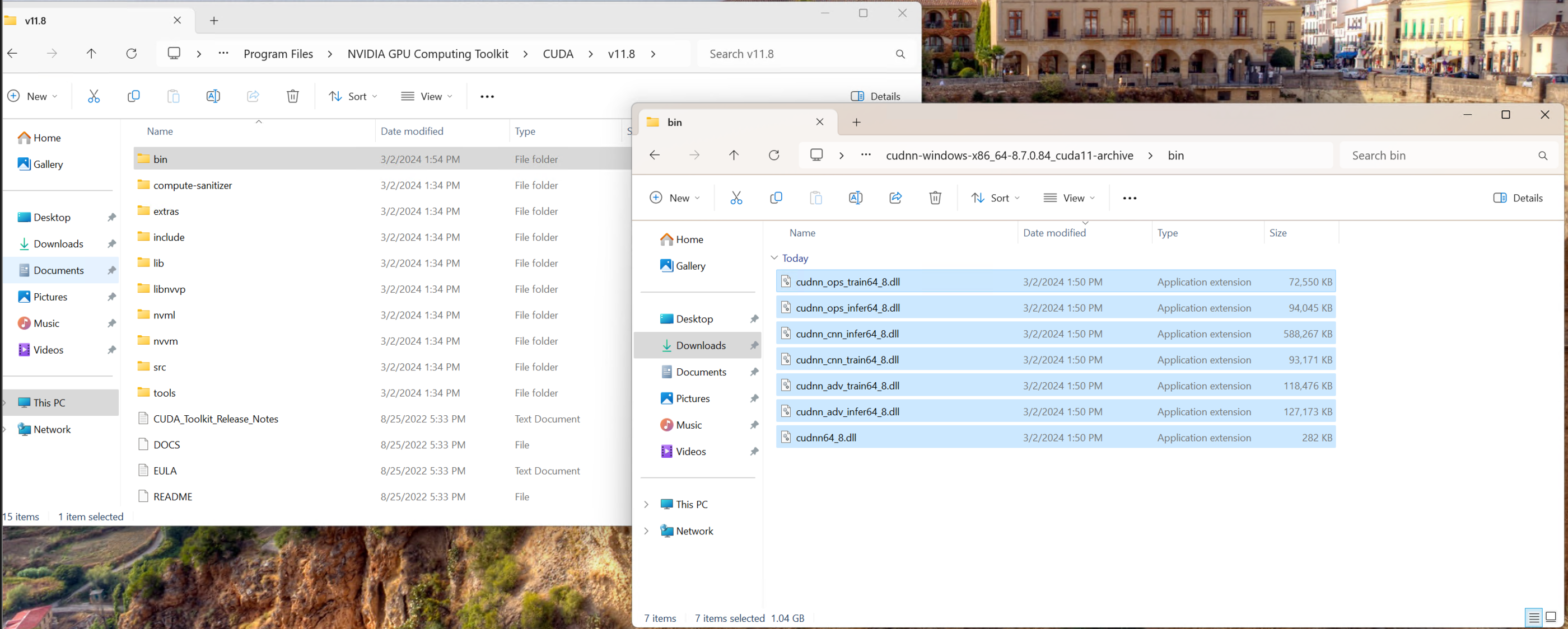
Copy all .dll files from the bin/ folder of the cuDNN download into the bin/ folder of the CUDA toolkit:
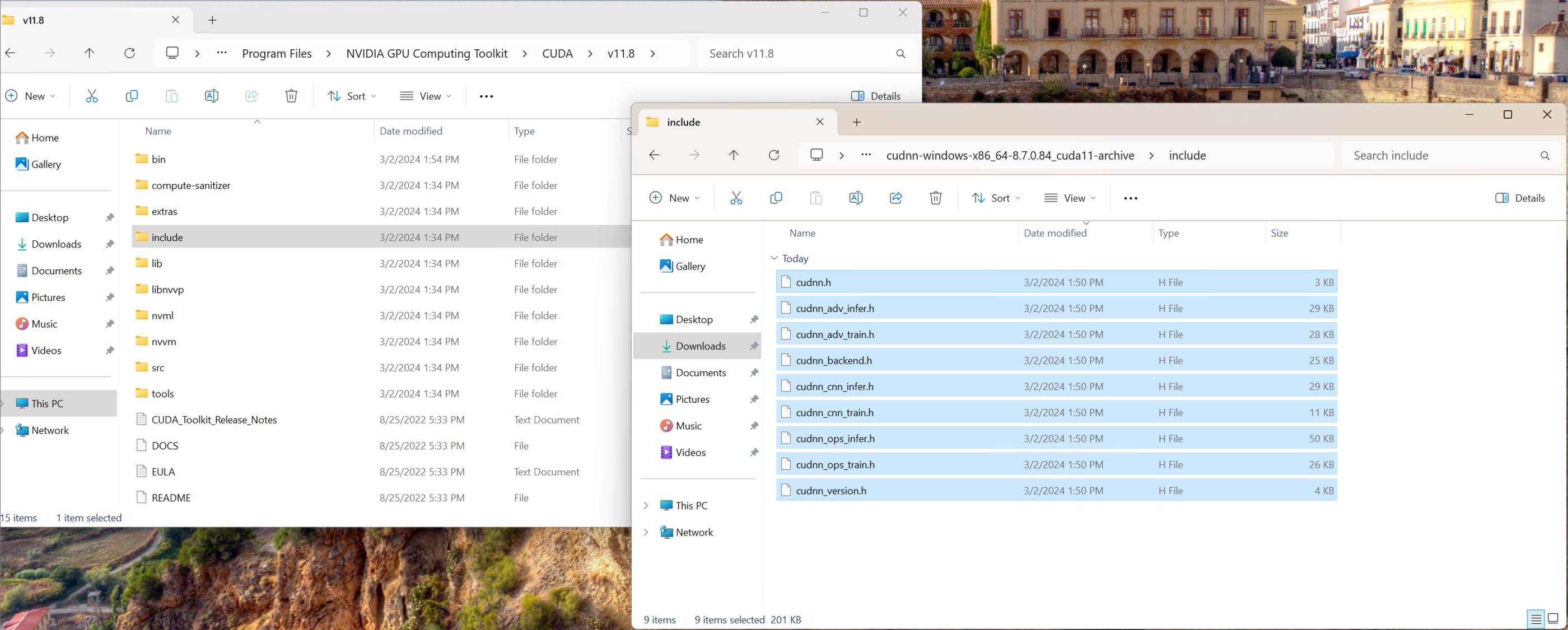
Copy all .h files from the include/ folder of the cuDNN download into the include/ folder of the CUDA toolkit:
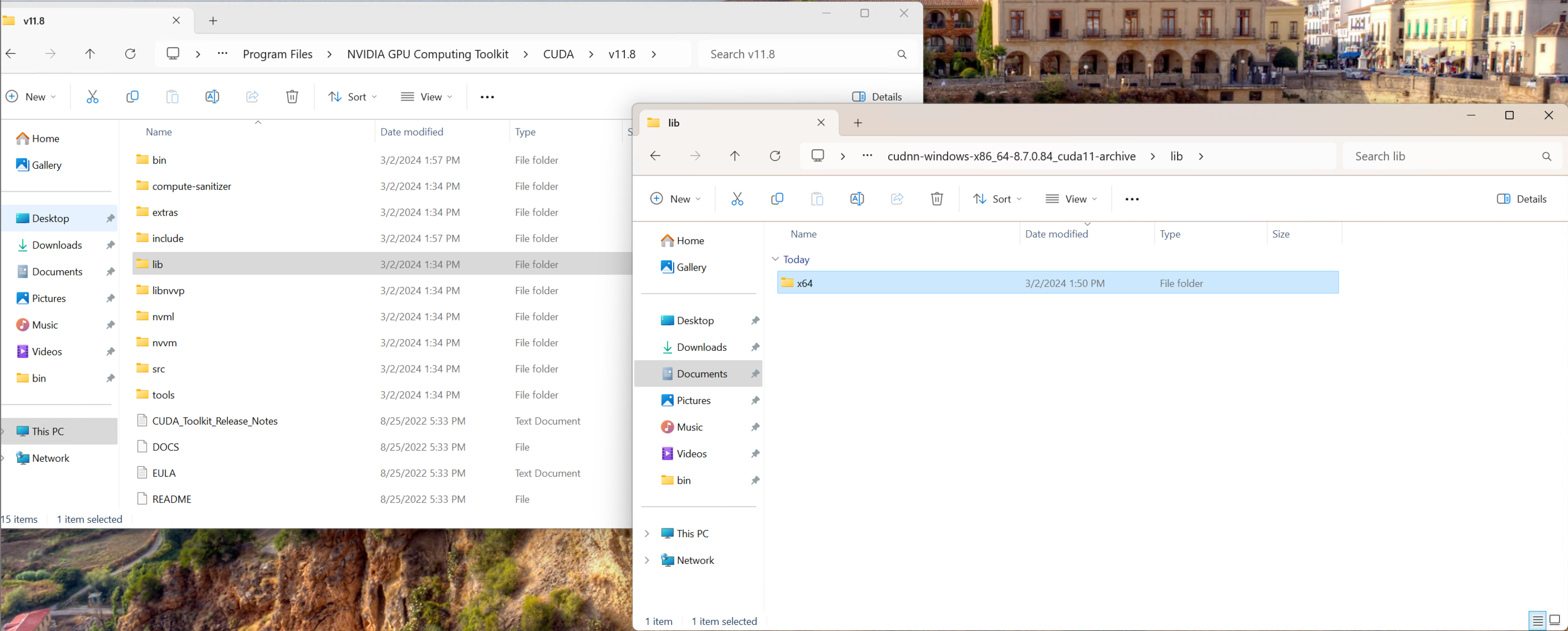
Copy the x64 folder from the lib/ directory of the cuDNN download into the lib/ directory of the CUDA installation:
Right-click the Start menu and choose System, then Advanced system settings, then Environment Variables. Create a new environment variable called CUDNN with the value:
C:\Program Files\NVIDIA GPU Computing Toolkit\CUDA\v11.8;C:\Program Files\NVIDIA GPU Computing Toolkit\CUDA\v11.8\bin;C:\Program Files\NVIDIA GPU Computing Toolkit\CUDA\v11.8\include;C:\Program Files\NVIDIA GPU Computing Toolkit\CUDA\v11.8\lib;Step 5: Install zlib
Find the file C:\Program Files\NVIDIA Corporation\Nsight Systems 2022.4.2\host-windows-x64\zlib.dll, right-click, and choose "Copy".
Navigate to C:\Program Files\NVIDIA GPU Computing Toolkit\CUDA\v11.8\bin, paste the zlib.dll file into this folder, and rename it to zlibwapi.dll.
Step 6: Install the Visual Studio 2019 C++ runtime
Install the Visual Studio 2019 C++ runtime (download link).
Verify the installation
Create a new file with the following contents and add your Roboflow API key:
from inference import InferencePipeline
from inference.core.interfaces.stream.sinks import render_boxes

pipeline = InferencePipeline.init(
    api_key="YOUR_API_KEY",
    model_id="rock-paper-scissors-sxsw/11",
    video_reference="https://media.roboflow.com/rock-paper-scissors.mp4",
    on_prediction=render_boxes,
)
pipeline.start()
pipeline.join()
Open a PowerShell terminal in the location of the file and run py infer.py. If the installation succeeded, you should see a few frames of annotated images displayed, with no errors or warnings in the console.