About
Batch Processing is a cost-effective way to run Workflows on batches of images and stored videos. It's ideal for asynchronously processing large amounts of data.
Batch Processing automatically provisions the infrastructure needed to run a large batch.
Batch Processing is available on Growth and Enterprise plans. You can start a job from the "Batch Processing" tab, or run a Workflow on a selection in the Asset Library.
You can configure a Batch Processing job through the Roboflow web interface or through our API (via the CLI).
When you start a job, machines will be provisioned in the cloud to process your data. You will then receive a JSON file with the output from the Workflow you chose to run on your data.
The following video explains Batch Processing in depth:
Web App
Create a Batch Processing Job
To create a Batch Processing job, click Deployments in the left sidebar of your Roboflow dashboard. Then, click on the "Batch Processing" tab:
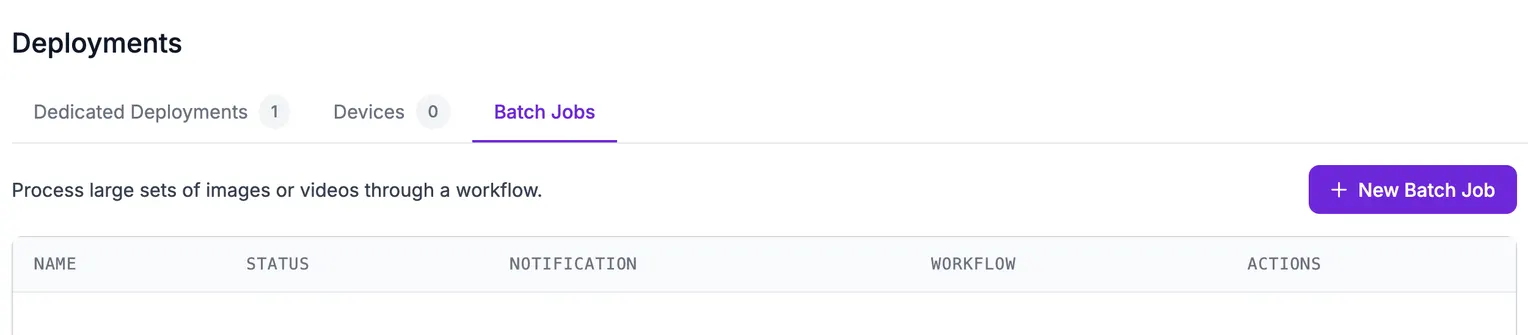
Click "New Batch Job" to create a Batch Processing job.
A window will open in which you can configure your job:
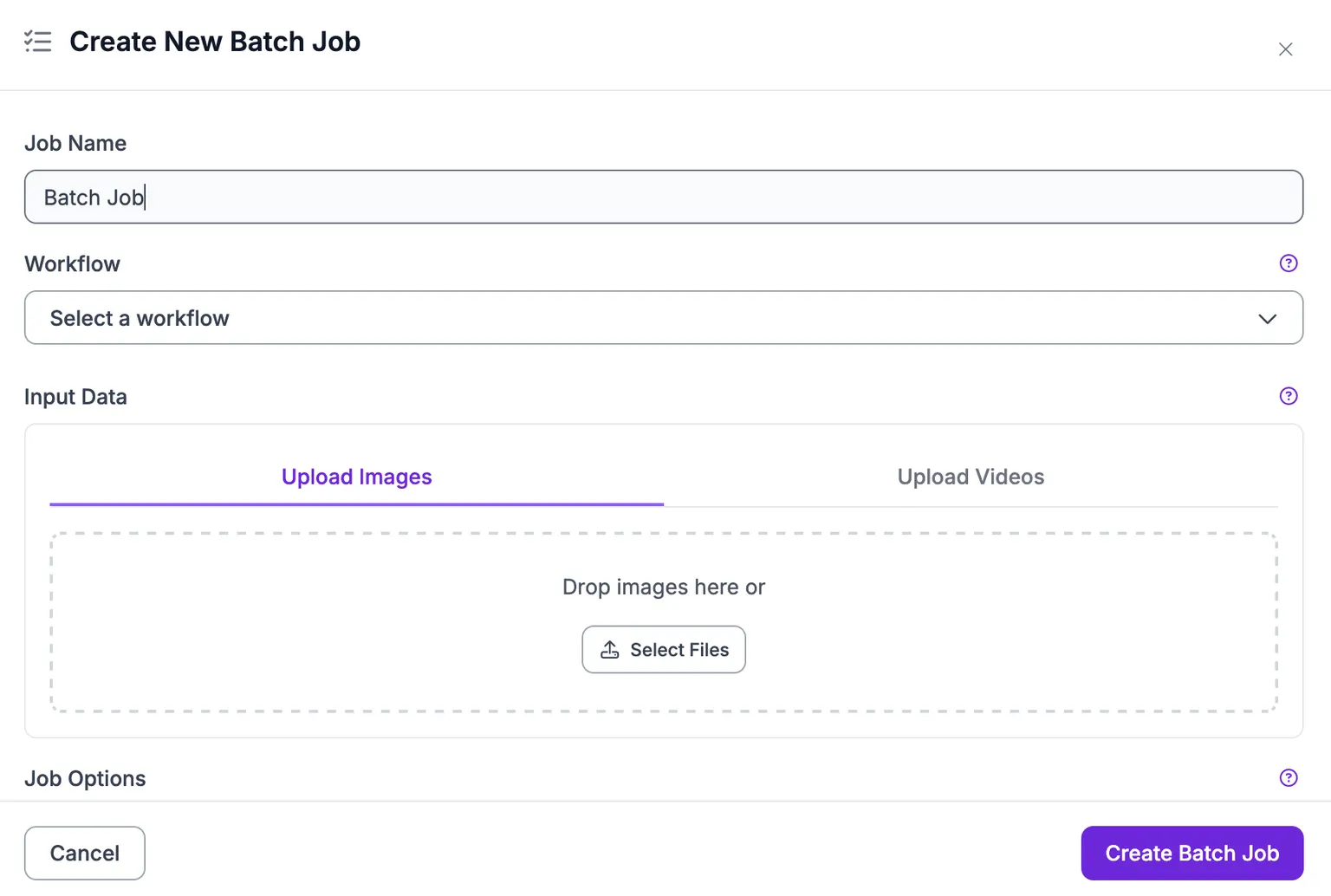
Choose a Workflow
To start configuring a job, first select a Workflow. If you do not already have a Workflow, refer to our Workflows documentation to get started.
Upload Images or Videos
Next, you need to upload the images or videos on which you want to run your Workflow.
Configure Hardware
You can run your Batch Processing job on a CPU or a GPU. GPU jobs are faster but more expensive.
For pricing information, refer to the Roboflow pricing documentation.
Select either a CPU or GPU for your job:
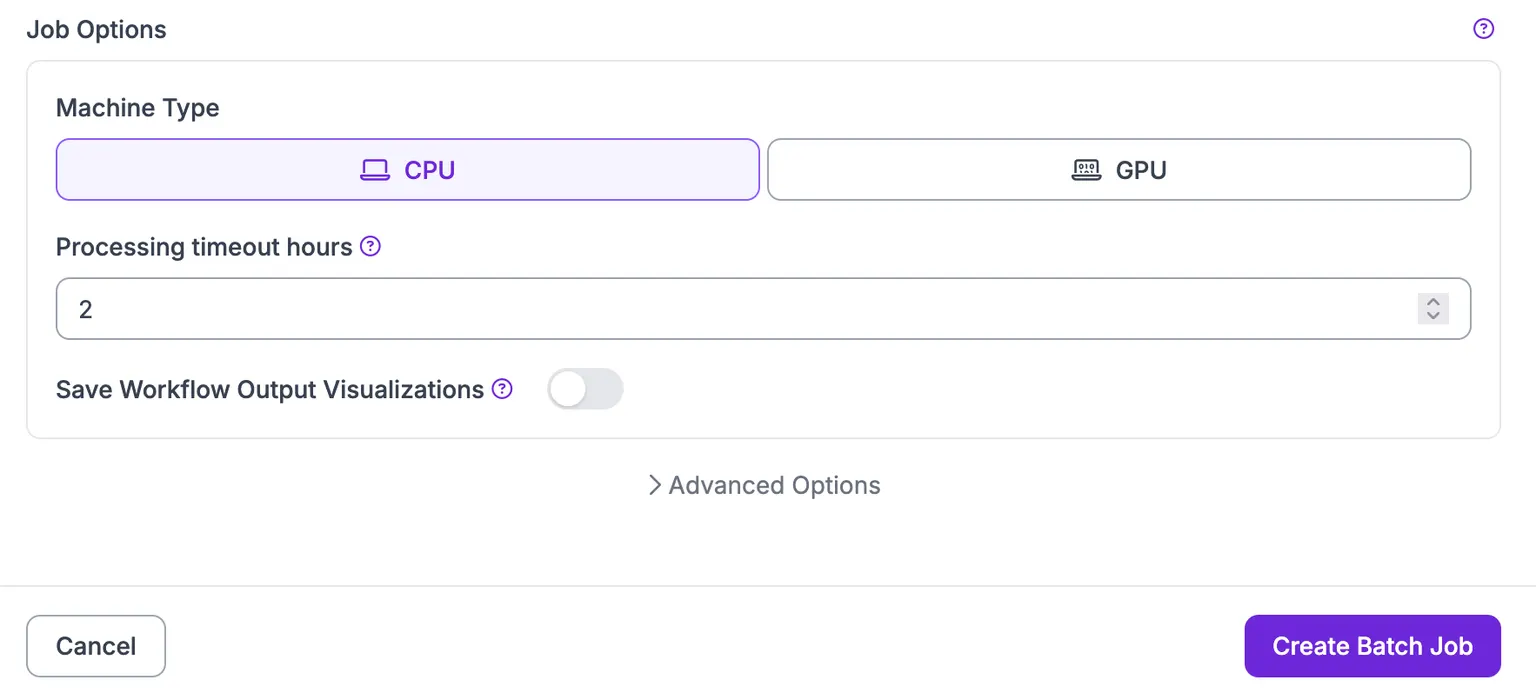
Several advanced configuration options are also available under the "Advanced Options" tab. We recommend leaving these options as the default.
Start the Job
To start the Batch Processing job, click "Create Batch Job".
The infrastructure for your job will be provisioned and processing will begin.
Monitor Job Progress
When you start your job, a status indicator will appear indicating when processing is being configured, when the batch data is being processed, and when the job is complete.
You can monitor how much of a batch has been processed in real time.
The amount of time it will take to process your data depends on how many images or videos you are processing, the complexity of your Workflow, and whether you selected CPU or GPU hardware.
Open a job to view its details, including the "Input Source" that shows which images the job ran on: the Asset Library search query used to select them (with a link to reopen that selection), or the number of images picked manually.
Run a Workflow from the App
Besides the API and CLI, you can start a Batch Processing job directly from the Roboflow app to run a Workflow over large sets of stored images. There are two ways to do this:
- On demand, from the Asset Library.
- Automatically, each time a Datasource mirrors new images from a cloud bucket.
From the Asset Library
The Asset Library lets you run a Workflow on the images you select, on demand.
Select images manually, or select all images matching your current search, then click "Run Workflow". For the full flow, including how to write results back onto your images, see Running a Workflow.
Automatically When a Datasource Mirrors
A Datasource mirrors images and metadata from a cloud bucket into your Workspace. You can automatically run a Workflow over the new images each mirror imports. This keeps enrichment such as tagging, quality scoring, or pre-labeling up to date as new data arrives, with no manual step.
You configure these automations in the "Workflow runs" section of your Datasources page.
Managing Workflow runs requires a Workspace role with permission to manage batch automations. If you do not see the "Workflow runs" section, ask a Workspace admin.
To add an automation:
- In the "Workflow runs" section, click "Add workflow run".
- Enter a Name for the automation.
- Under "Run when", choose "On Sync" and select the Datasources that should trigger it.
- Select the Workflow to run. It must have exactly one
imageinput. - Choose a Machine type (CPU or GPU).
- Click "Create".
Each time one of the selected Datasources mirrors, the automation runs the Workflow as a Batch Processing job over the images that mirror imported. Track progress in the Activity Center and on the "Batch Processing" tab under Deployments, the same as any other Batch Processing job.
To have a Workflow write its results back onto your images so you can search for them in the Asset Library, see Writing results back to the Asset Library.
Run a Job with the API or CLI
To create and run a Batch Processing job programmatically, see the HTTP API and CLI sections below. For debugging common issues, see Troubleshooting.
HTTP API
Quick Links:
- Ingest Data (video, single image, images)
- Check Batch Status (item count, shard details)
- Start a Job
- Monitor Job Progress (job status, stages, tasks)
- Export Results (output parts, download URLs)
- Webhook Notifications
Ingest Data
Upload Video
Upload a video
Request a signed URL to upload a video file. After receiving the response, PUT the video to the uploadURL with the provided extensionHeaders.
Your Roboflow workspace identifier.
Batch identifier. Lowercase, max 64 chars: letters, digits, hyphens, underscores.
Your Roboflow API key.
Name of the video file (e.g. my_video.mp4).
200Signed URL details for uploading the video.application/json
okShow propertiesHide properties
PUT the video file to this URL.
HTTP method to use for the upload.
PUTInclude these headers in the PUT request.
{"Content-Type":"application/octet-stream","x-goog-content-length-range":"1,1073741824"}Maximum file size in bytes.
1073741824POST /data-staging/v1/external/{workspace}/batches/{batch_id}/upload/video?api_key=text&fileName=text HTTP/1.1
Host: api.roboflow.com
Accept: application/jsoncurl -L \
--request POST \
--url 'https://api.roboflow.com/data-staging/v1/external/{workspace}/batches/{batch_id}/upload/video?api_key=text&fileName=text' \
--header 'Accept: application/json'const response = await fetch("https://api.roboflow.com/data-staging/v1/external/{workspace}/batches/{batch_id}/upload/video?api_key=text&fileName=text", {
method: "POST",
headers: {
"Accept": "application/json"
}
});
const data = await response.json();
console.log(data);import requests
url = "https://api.roboflow.com/data-staging/v1/external/{workspace}/batches/{batch_id}/upload/video?api_key=text&fileName=text"
headers = {
"Accept": "application/json"
}
response = requests.post(url, headers=headers)
print(response.json()){
"status": "ok",
"signedURLDetails": {
"uploadURL": "text",
"method": "PUT",
"extensionHeaders": {
"Content-Type": "application/octet-stream",
"x-goog-content-length-range": "1,1073741824"
},
"maxFileSize": 1073741824
}
}Upload Image
Upload a single image
Upload a single image via multipart form data. Best for batches up to 5,000 images.
Note: Single-image and bulk uploads cannot be combined for the same batch.
Your Roboflow workspace identifier.
Batch identifier. Lowercase, max 64 chars: letters, digits, hyphens, underscores.
Your Roboflow API key.
Name of the image file.
The image file to upload.
200Image uploaded successfully.application/json
okPOST /data-staging/v1/external/{workspace}/batches/{batch_id}/upload/image?api_key=text&fileName=text HTTP/1.1
Host: api.roboflow.com
Content-Type: multipart/form-data
Accept: application/json
{
"file": "binary"
}curl -L \
--request POST \
--url 'https://api.roboflow.com/data-staging/v1/external/{workspace}/batches/{batch_id}/upload/image?api_key=text&fileName=text' \
--header 'Content-Type: multipart/form-data' \
--header 'Accept: application/json' \
--data '{
"file": "binary"
}'const response = await fetch("https://api.roboflow.com/data-staging/v1/external/{workspace}/batches/{batch_id}/upload/image?api_key=text&fileName=text", {
method: "POST",
headers: {
"Content-Type": "multipart/form-data",
"Accept": "application/json"
},
body: JSON.stringify({
"file": "binary"
})
});
const data = await response.json();
console.log(data);import requests
url = "https://api.roboflow.com/data-staging/v1/external/{workspace}/batches/{batch_id}/upload/image?api_key=text&fileName=text"
headers = {
"Content-Type": "multipart/form-data",
"Accept": "application/json"
}
payload = {
"file": "binary"
}
response = requests.post(url, headers=headers, json=payload)
print(response.json()){
"status": "ok"
}Bulk Upload Images
Bulk upload images
Request a signed URL for uploading a .tar archive of images. Recommended for batches exceeding 5,000 images. Bundle up to 500 images per archive.
The response contains a signed URL and extension headers. Pack images into a .tar archive and PUT it to the signed URL.
Note: Bulk and single-image uploads cannot be combined for the same batch.
When performing bulk ingestion, data is indexed in the background. There may be a short delay before all data is available.
Your Roboflow workspace identifier.
Batch identifier. Lowercase, max 64 chars: letters, digits, hyphens, underscores.
Your Roboflow API key.
200Signed URL details for uploading a tar archive.application/json
okShow propertiesHide properties
Unique identifier for this shard upload.
PUT the tar archive to this URL.
HTTP method to use for the upload.
PUTInclude these headers in the PUT request.
{"Content-Type":"application/x-tar","x-goog-content-length-range":"1,536870912"}Maximum number of images per tar archive.
500Maximum tar archive size in bytes.
536870912POST /data-staging/v1/external/{workspace}/batches/{batch_id}/bulk-upload/image-files?api_key=text HTTP/1.1
Host: api.roboflow.com
Accept: application/jsoncurl -L \
--request POST \
--url 'https://api.roboflow.com/data-staging/v1/external/{workspace}/batches/{batch_id}/bulk-upload/image-files?api_key=text' \
--header 'Accept: application/json'const response = await fetch("https://api.roboflow.com/data-staging/v1/external/{workspace}/batches/{batch_id}/bulk-upload/image-files?api_key=text", {
method: "POST",
headers: {
"Accept": "application/json"
}
});
const data = await response.json();
console.log(data);import requests
url = "https://api.roboflow.com/data-staging/v1/external/{workspace}/batches/{batch_id}/bulk-upload/image-files?api_key=text"
headers = {
"Accept": "application/json"
}
response = requests.post(url, headers=headers)
print(response.json()){
"status": "ok",
"signedURLDetails": {
"shardId": "text",
"uploadURL": "text",
"method": "PUT",
"extensionHeaders": {
"Content-Type": "application/x-tar",
"x-goog-content-length-range": "1,536870912"
},
"maxNumberOfImages": 500,
"maxShardSize": 536870912
}
}Check Batch Status
Get batch item count
Returns the count of ingested items in a batch. Use this to verify all data has been ingested before starting a job.
Your Roboflow workspace identifier.
Batch identifier. Lowercase, max 64 chars: letters, digits, hyphens, underscores.
Your Roboflow API key.
200Batch item count.application/json
okNumber of items in the batch.
42GET /data-staging/v1/external/{workspace}/batches/{batch_id}/count?api_key=text HTTP/1.1
Host: api.roboflow.com
Accept: application/jsoncurl -L \
--request GET \
--url 'https://api.roboflow.com/data-staging/v1/external/{workspace}/batches/{batch_id}/count?api_key=text' \
--header 'Accept: application/json'const response = await fetch("https://api.roboflow.com/data-staging/v1/external/{workspace}/batches/{batch_id}/count?api_key=text", {
method: "GET",
headers: {
"Accept": "application/json"
}
});
const data = await response.json();
console.log(data);import requests
url = "https://api.roboflow.com/data-staging/v1/external/{workspace}/batches/{batch_id}/count?api_key=text"
headers = {
"Accept": "application/json"
}
response = requests.get(url, headers=headers)
print(response.json()){
"status": "ok",
"count": 42
}Check Shard Upload Details
List batch shards
Returns shard details for a bulk-upload batch. Paginated — use nextPageToken from the response to fetch subsequent pages.
Your Roboflow workspace identifier.
Batch identifier. Lowercase, max 64 chars: letters, digits, hyphens, underscores.
Your Roboflow API key.
Pagination token from a previous response.
200Paginated list of batch shards.application/json
okList of shard objects.
Token for fetching the next page of results. null if no more pages.
GET /data-staging/v1/external/{workspace}/batches/{batch_id}/shards?api_key=text HTTP/1.1
Host: api.roboflow.com
Accept: application/jsoncurl -L \
--request GET \
--url 'https://api.roboflow.com/data-staging/v1/external/{workspace}/batches/{batch_id}/shards?api_key=text' \
--header 'Accept: application/json'const response = await fetch("https://api.roboflow.com/data-staging/v1/external/{workspace}/batches/{batch_id}/shards?api_key=text", {
method: "GET",
headers: {
"Accept": "application/json"
}
});
const data = await response.json();
console.log(data);import requests
url = "https://api.roboflow.com/data-staging/v1/external/{workspace}/batches/{batch_id}/shards?api_key=text"
headers = {
"Accept": "application/json"
}
response = requests.get(url, headers=headers)
print(response.json()){
"status": "ok",
"shards": [
{}
],
"nextPageToken": "text"
}Start a Job
Start a batch processing job
Start a batch processing job that runs a Workflow against staged data.
Job ID constraints: Lowercase letters, digits, hyphens, and underscores only. Maximum 20 characters.
Your Roboflow workspace identifier.
Job identifier. Lowercase, max 20 chars: letters, digits, hyphens, underscores.
Your Roboflow API key.
Job type.
simple-image-processing-v1Show propertiesHide properties
Input type.
staging-batch-input-v1The batch ID containing the data to process.
Show propertiesHide properties
Configuration type.
compute-configuration-v2Machine type. Use gpu for Workflows with multiple or large models.
cpugpuNumber of parallel workers per machine. Reduce for memory-intensive Workflows.
4Maximum cumulative machine runtime in seconds across all parallel workers.
3600Show propertiesHide properties
Processing specification type.
workflows-processing-specification-v1Workspace containing the Workflow.
The Workflow to run. Find this in the Workflow Editor under "Deploy".
Output format for aggregated results.
jsonljsonlcsvWebhook URL for job completion notifications. Custom webhook headers are not yet supported. The only header sent is Authorization: Bearer rf_{workspace_id}.
200Job started successfully.application/json
okPOST /batch-processing/v1/external/{workspace}/jobs/{job_id}?api_key=text HTTP/1.1
Host: api.roboflow.com
Content-Type: application/json
Accept: application/json
{
"type": "simple-image-processing-v1",
"jobInput": {
"type": "staging-batch-input-v1",
"batchId": "text"
},
"computeConfiguration": {
"type": "compute-configuration-v2",
"machineType": "cpu",
"workersPerMachine": 4
},
"processingTimeoutSeconds": 3600,
"processingSpecification": {
"type": "workflows-processing-specification-v1",
"workspace": "text",
"workflowId": "text",
"aggregationFormat": "jsonl"
},
"notificationsURL": "text"
}curl -L \
--request POST \
--url 'https://api.roboflow.com/batch-processing/v1/external/{workspace}/jobs/{job_id}?api_key=text' \
--header 'Content-Type: application/json' \
--header 'Accept: application/json' \
--data '{
"type": "simple-image-processing-v1",
"jobInput": {
"type": "staging-batch-input-v1",
"batchId": "text"
},
"computeConfiguration": {
"type": "compute-configuration-v2",
"machineType": "cpu",
"workersPerMachine": 4
},
"processingTimeoutSeconds": 3600,
"processingSpecification": {
"type": "workflows-processing-specification-v1",
"workspace": "text",
"workflowId": "text",
"aggregationFormat": "jsonl"
},
"notificationsURL": "text"
}'const response = await fetch("https://api.roboflow.com/batch-processing/v1/external/{workspace}/jobs/{job_id}?api_key=text", {
method: "POST",
headers: {
"Content-Type": "application/json",
"Accept": "application/json"
},
body: JSON.stringify({
"type": "simple-image-processing-v1",
"jobInput": {
"type": "staging-batch-input-v1",
"batchId": "text"
},
"computeConfiguration": {
"type": "compute-configuration-v2",
"machineType": "cpu",
"workersPerMachine": 4
},
"processingTimeoutSeconds": 3600,
"processingSpecification": {
"type": "workflows-processing-specification-v1",
"workspace": "text",
"workflowId": "text",
"aggregationFormat": "jsonl"
},
"notificationsURL": "text"
})
});
const data = await response.json();
console.log(data);import requests
url = "https://api.roboflow.com/batch-processing/v1/external/{workspace}/jobs/{job_id}?api_key=text"
headers = {
"Content-Type": "application/json",
"Accept": "application/json"
}
payload = {
"type": "simple-image-processing-v1",
"jobInput": {
"type": "staging-batch-input-v1",
"batchId": "text"
},
"computeConfiguration": {
"type": "compute-configuration-v2",
"machineType": "cpu",
"workersPerMachine": 4
},
"processingTimeoutSeconds": 3600,
"processingSpecification": {
"type": "workflows-processing-specification-v1",
"workspace": "text",
"workflowId": "text",
"aggregationFormat": "jsonl"
},
"notificationsURL": "text"
}
response = requests.post(url, headers=headers, json=payload)
print(response.json()){
"status": "ok"
}Monitor Job Progress
Get Job Status
Get job status
Returns the current status of a batch processing job.
Your Roboflow workspace identifier.
Job identifier. Lowercase, max 20 chars: letters, digits, hyphens, underscores.
Your Roboflow API key.
200Job status details.application/json
okCurrent job status (e.g. pending, processing, completed, failed).
Processing progress as a fraction between 0 and 1.
GET /batch-processing/v1/external/{workspace}/jobs/{job_id}?api_key=text HTTP/1.1
Host: api.roboflow.com
Accept: application/jsoncurl -L \
--request GET \
--url 'https://api.roboflow.com/batch-processing/v1/external/{workspace}/jobs/{job_id}?api_key=text' \
--header 'Accept: application/json'const response = await fetch("https://api.roboflow.com/batch-processing/v1/external/{workspace}/jobs/{job_id}?api_key=text", {
method: "GET",
headers: {
"Accept": "application/json"
}
});
const data = await response.json();
console.log(data);import requests
url = "https://api.roboflow.com/batch-processing/v1/external/{workspace}/jobs/{job_id}?api_key=text"
headers = {
"Accept": "application/json"
}
response = requests.get(url, headers=headers)
print(response.json()){
"status": "ok",
"jobStatus": "text",
"progress": 1
}List Job Stages
List job stages
Returns the list of stages for a job. Each job typically has processing and export stages, each producing an output batch.
Your Roboflow workspace identifier.
Job identifier. Lowercase, max 20 chars: letters, digits, hyphens, underscores.
Your Roboflow API key.
200List of job stages.application/json
okList of stage objects. Each stage has an ID and an output batch ID.
GET /batch-processing/v1/external/{workspace}/jobs/{job_id}/stages?api_key=text HTTP/1.1
Host: api.roboflow.com
Accept: application/jsoncurl -L \
--request GET \
--url 'https://api.roboflow.com/batch-processing/v1/external/{workspace}/jobs/{job_id}/stages?api_key=text' \
--header 'Accept: application/json'const response = await fetch("https://api.roboflow.com/batch-processing/v1/external/{workspace}/jobs/{job_id}/stages?api_key=text", {
method: "GET",
headers: {
"Accept": "application/json"
}
});
const data = await response.json();
console.log(data);import requests
url = "https://api.roboflow.com/batch-processing/v1/external/{workspace}/jobs/{job_id}/stages?api_key=text"
headers = {
"Accept": "application/json"
}
response = requests.get(url, headers=headers)
print(response.json()){
"status": "ok",
"stages": [
{}
]
}List Stage Tasks
List tasks for a stage
Returns the list of tasks for a specific job stage. Paginated — use nextPageToken from the response to fetch subsequent pages.
Your Roboflow workspace identifier.
Job identifier. Lowercase, max 20 chars: letters, digits, hyphens, underscores.
The stage identifier.
Your Roboflow API key.
Pagination token from a previous response.
200Paginated list of tasks.application/json
okList of task objects.
Token for fetching the next page of results. null if no more pages.
GET /batch-processing/v1/external/{workspace}/jobs/{job_id}/stages/{stage_id}/tasks?api_key=text HTTP/1.1
Host: api.roboflow.com
Accept: application/jsoncurl -L \
--request GET \
--url 'https://api.roboflow.com/batch-processing/v1/external/{workspace}/jobs/{job_id}/stages/{stage_id}/tasks?api_key=text' \
--header 'Accept: application/json'const response = await fetch("https://api.roboflow.com/batch-processing/v1/external/{workspace}/jobs/{job_id}/stages/{stage_id}/tasks?api_key=text", {
method: "GET",
headers: {
"Accept": "application/json"
}
});
const data = await response.json();
console.log(data);import requests
url = "https://api.roboflow.com/batch-processing/v1/external/{workspace}/jobs/{job_id}/stages/{stage_id}/tasks?api_key=text"
headers = {
"Accept": "application/json"
}
response = requests.get(url, headers=headers)
print(response.json()){
"status": "ok",
"tasks": [
{}
],
"nextPageToken": "text"
}Export Results
List Output Parts
List output batch parts
Lists the parts of an output batch. Use the export stage output batch for compressed results.
Your Roboflow workspace identifier.
Batch identifier. Lowercase, max 64 chars: letters, digits, hyphens, underscores.
Your Roboflow API key.
200List of batch parts.application/json
okList of batch part objects.
Show propertiesHide properties
Name of the batch part.
GET /data-staging/v1/external/{workspace}/batches/{batch_id}/parts?api_key=text HTTP/1.1
Host: api.roboflow.com
Accept: application/jsoncurl -L \
--request GET \
--url 'https://api.roboflow.com/data-staging/v1/external/{workspace}/batches/{batch_id}/parts?api_key=text' \
--header 'Accept: application/json'const response = await fetch("https://api.roboflow.com/data-staging/v1/external/{workspace}/batches/{batch_id}/parts?api_key=text", {
method: "GET",
headers: {
"Accept": "application/json"
}
});
const data = await response.json();
console.log(data);import requests
url = "https://api.roboflow.com/data-staging/v1/external/{workspace}/batches/{batch_id}/parts?api_key=text"
headers = {
"Accept": "application/json"
}
response = requests.get(url, headers=headers)
print(response.json()){
"status": "ok",
"parts": [
{
"partName": "text"
}
]
}List Download URLs
List download URLs
Returns paginated download URLs for files in a batch part.
Your Roboflow workspace identifier.
Batch identifier. Lowercase, max 64 chars: letters, digits, hyphens, underscores.
Your Roboflow API key.
Pagination token from a previous response.
Filter by part name (from the list parts response).
200Paginated list of download URLs.application/json
okList of file metadata objects with download URLs.
Show propertiesHide properties
Signed URL to download the file.
Original file name.
Part name this file belongs to.
Shard ID (for bulk-upload batches).
Content type (e.g. image, video).
Nested content type, if applicable.
Token for fetching the next page of results. null if no more pages.
GET /data-staging/v1/external/{workspace}/batches/{batch_id}/list?api_key=text HTTP/1.1
Host: api.roboflow.com
Accept: application/jsoncurl -L \
--request GET \
--url 'https://api.roboflow.com/data-staging/v1/external/{workspace}/batches/{batch_id}/list?api_key=text' \
--header 'Accept: application/json'const response = await fetch("https://api.roboflow.com/data-staging/v1/external/{workspace}/batches/{batch_id}/list?api_key=text", {
method: "GET",
headers: {
"Accept": "application/json"
}
});
const data = await response.json();
console.log(data);import requests
url = "https://api.roboflow.com/data-staging/v1/external/{workspace}/batches/{batch_id}/list?api_key=text"
headers = {
"Accept": "application/json"
}
response = requests.get(url, headers=headers)
print(response.json()){
"status": "ok",
"filesMetadata": [
{
"downloadURL": "text",
"fileName": "text",
"partName": "text",
"shardId": "text",
"contentType": "text",
"nestedContentType": "text"
}
],
"nextPageToken": "text"
}Webhook Notifications
Instead of polling for status, you can use webhooks to get notified when ingestion or processing completes. See CLI Usage for webhook configuration and payload formats.
CLI
By installing inference-cli you gain access to the inference rf-cloud command, which allows you to interact with Batch Processing and Data Staging - the core components of Roboflow Batch Processing.
Setup
pip install inference-cli
export ROBOFLOW_API_KEY="YOUR-API-KEY-GOES-HERE"
For cloud storage support:
pip install 'inference-cli[cloud-storage]'If you need help finding your API key, see our authentication guide.
Ingest Data
Images
inference rf-cloud data-staging create-batch-of-images \
  --images-dir <your-images-dir-path> \
  --batch-id <your-batch-id>
Videos
inference rf-cloud data-staging create-batch-of-videos \
  --videos-dir <your-videos-dir-path> \
  --batch-id <your-batch-id>
Batch ID format: Must be lowercase, at most 64 characters, with only letters, digits, hyphens (-), and underscores (_).
Cloud Storage
If your data is already in cloud storage (S3, Google Cloud Storage, or Azure), you can process it directly without downloading files locally.
For images:
inference rf-cloud data-staging create-batch-of-images \
  --data-source cloud-storage \
  --bucket-path <cloud-path> \
  --batch-id <your-batch-id>
For videos:
inference rf-cloud data-staging create-batch-of-videos \
  --data-source cloud-storage \
  --bucket-path <cloud-path> \
  --batch-id <your-batch-id>
The --bucket-path parameter supports the following providers. Glob patterns filter which files are ingested:
| Provider | Path format | Glob example |
|---|---|---|
| S3 | s3://bucket-name/path/ | s3://my-bucket/training-data/**/*.jpg - all JPGs recursively |
| Google Cloud Storage | gs://bucket-name/path/ | gs://my-bucket/videos/2024-*/*.mp4 - MP4s in 2024-* folders |
| Azure Blob Storage | az://container-name/path/ | az://container/images/*.png - PNGs in the images folder |
Your cloud storage credentials are used only locally by the CLI to generate presigned URLs. They are never uploaded to Roboflow servers.
Generated presigned URLs are valid for 24 hours. Ensure your batch processing job completes within this timeframe.
For large datasets, the system automatically splits images into chunks of 20,000 files each. Videos work best in batches under 1,000.
Signed URL Ingestion
For advanced automation, you can ingest data via signed URLs instead of local files:
| Flag | Description |
|---|---|
--data-source references-file | Process files referenced via signed URLs. |
--references <path_or_url> | Path to a JSONL file containing file URLs, or a signed URL pointing to such a file. |
Reference File Format (JSONL):
{"name": "<unique-file-name-1>", "url": "https://<signed-url>"}
{"name": "<unique-file-name-2>", "url": "https://<signed-url>"}
Signed URL ingestion is available to Growth Plan and Enterprise customers.
Inspect Staged Data
inference rf-cloud data-staging show-batch-details --batch-id <your-batch-id>Start a Job
Process Images
inference rf-cloud batch-processing process-images-with-workflow \
  --workflow-id <workflow-id> \
  --batch-id <batch-id> \
  --machine-type gpu
Process Videos
inference rf-cloud batch-processing process-videos-with-workflow \
  --workflow-id <workflow-id> \
  --batch-id <batch-id> \
  --machine-type gpu \
  --max-video-fps <your-desired-fps>
Finding your Workflow ID: Open the Workflow Editor in the Roboflow App, click "Deploy", and find the identifier in the code snippet.
By default, processing runs on CPU. Use --machine-type gpu for Workflows with multiple or large models.
Monitor Job Progress
The start command outputs a Job ID. Use it to check status:
inference rf-cloud batch-processing show-job-details --job-id <your-job-id>Export Results
The job details will include the output batch ID. Use it to export results:
inference rf-cloud data-staging export-batch \
  --target-dir <dir-to-export-result> \
  --batch-id <output-batch-of-a-job>
Webhook Automation
Instead of polling for status, you can use webhooks to get notified when ingestion or processing completes.
Data Ingestion Webhooks
The CLI commands create-batch-of-images and create-batch-of-videos support:
| Flag | Description |
|---|---|
--notifications-url <webhook_url> | Webhook endpoint for notifications. |
--notification-category ingest-status | Overall ingestion process status. Default. |
--notification-category files-status | Individual file processing status. |
Notifications are delivered via HTTP POST with an Authorization header containing your Roboflow Publishable Key.
Ingest Status Notification
{
    "type": "roboflow-data-staging-notification-v1",
    "event_id": "8c20f970-fe10-41e1-9ef2-e057c63c07ff",
    "ingest_id": "8cd48813430f2be70b492db67e07cc86",
    "batch_id": "test-batch-117",
    "shard_id": null,
    "notification": {
        "type": "ingest-status-notification-v1",
        "success": false,
        "error_details": {
            "type": "unsafe-url-detected",
            "reason": "Untrusted domain found: https://example.com/image.png"
        }
    },
    "delivery_attempt": 1
}
File Status Notification
{
    "type": "roboflow-data-staging-notification-v1",
    "event_id": "8f42708b-aeb7-4b73-9d83-cf18518b6d81",
    "ingest_id": "d5cb69aa-b2d1-4202-a1c1-0231f180bda9",
    "batch_id": "prod-batch-1",
    "shard_id": "0d40fa12-349e-439f-83f8-42b9b7987b33",
    "notification": {
        "type": "ingest-files-status-notification-v1",
        "success": true,
        "ingested_files": [
            "000000494869.jpg",
            "000000186042.jpg"
        ],
        "failed_files": [
            {
                "type": "file-size-limit-exceeded",
                "file_name": "big_image.png",
                "reason": "Max size of single image is 20971520B."
            }
        ],
        "content_truncated": false
    },
    "delivery_attempt": 1
}
Job Completion Webhooks
Add --notifications-url when starting a job:
inference rf-cloud batch-processing process-images-with-workflow \
  --workflow-id <workflow-id> \
  --batch-id <batch-id> \
  --notifications-url <webhook_url>
Job Completion Notification
{
  "type": "roboflow-batch-job-notification-v1",
  "event_id": "8f42708b-aeb7-4b73-9d83-cf18518b6d81",
  "job_id": "<your-batch-job-id>",
  "job_state": "success | fail",
  "delivery_attempt": 1
}
Cloud Storage Authentication
AWS S3 and S3-Compatible Storage
Credentials are detected automatically from:
- Environment variables:
export AWS_ACCESS_KEY_ID=your-access-key-id
export AWS_SECRET_ACCESS_KEY=your-secret-access-key
export AWS_SESSION_TOKEN=your-session-token # Optional- AWS credential files (
~/.aws/credentials,~/.aws/config) - IAM roles (EC2, ECS, Lambda)
Named profiles:
export AWS_PROFILE=productionS3-compatible services (Cloudflare R2, MinIO, etc.):
export AWS_ENDPOINT_URL=https://account-id.r2.cloudflarestorage.com
export AWS_REGION=auto  # R2 requires region='auto'
export AWS_ACCESS_KEY_ID=your-r2-access-key
export AWS_SECRET_ACCESS_KEY=your-r2-secret-key
Google Cloud Storage
Credentials are detected from:
- Service account key file (recommended for automation):
export GOOGLE_APPLICATION_CREDENTIALS=/path/to/service-account-key.json- User credentials from gcloud CLI (
gcloud auth login) - GCP metadata service (when running on Google Cloud Platform)
Azure Blob Storage
SAS Token (recommended):
export AZURE_STORAGE_ACCOUNT_NAME=mystorageaccount
export AZURE_STORAGE_SAS_TOKEN="sv=2021-06-08&ss=b&srt=sco&sp=rl&se=2024-12-31"
Account Key:
export AZURE_STORAGE_ACCOUNT_NAME=mystorageaccount
export AZURE_STORAGE_ACCOUNT_KEY=your-account-key
Generate a SAS token via Azure CLI:
az storage container generate-sas \
  --account-name mystorageaccount \
  --name my-container \
  --permissions rl \
  --expiry 2024-12-31T23:59:59Z
Custom Scripts
For advanced use cases, reference scripts for generating signed URL files:
- AWS S3: generateS3SignedUrls.sh
- Google Cloud Storage: generateGCSSignedUrls.sh
- Azure Blob Storage: generateAzureSasUrls.sh
Discover All Options
inference rf-cloud --help
inference rf-cloud data-staging --help
inference rf-cloud batch-processing --help