Send Events
You can send Vision Events using a Workflow block, the REST API, or edge device backup.
- Workflow Block - Workflows users will probably find it easiest to use the official Roboflow block
- REST API - Users choosing to deploy models outside of workflows can use our REST API
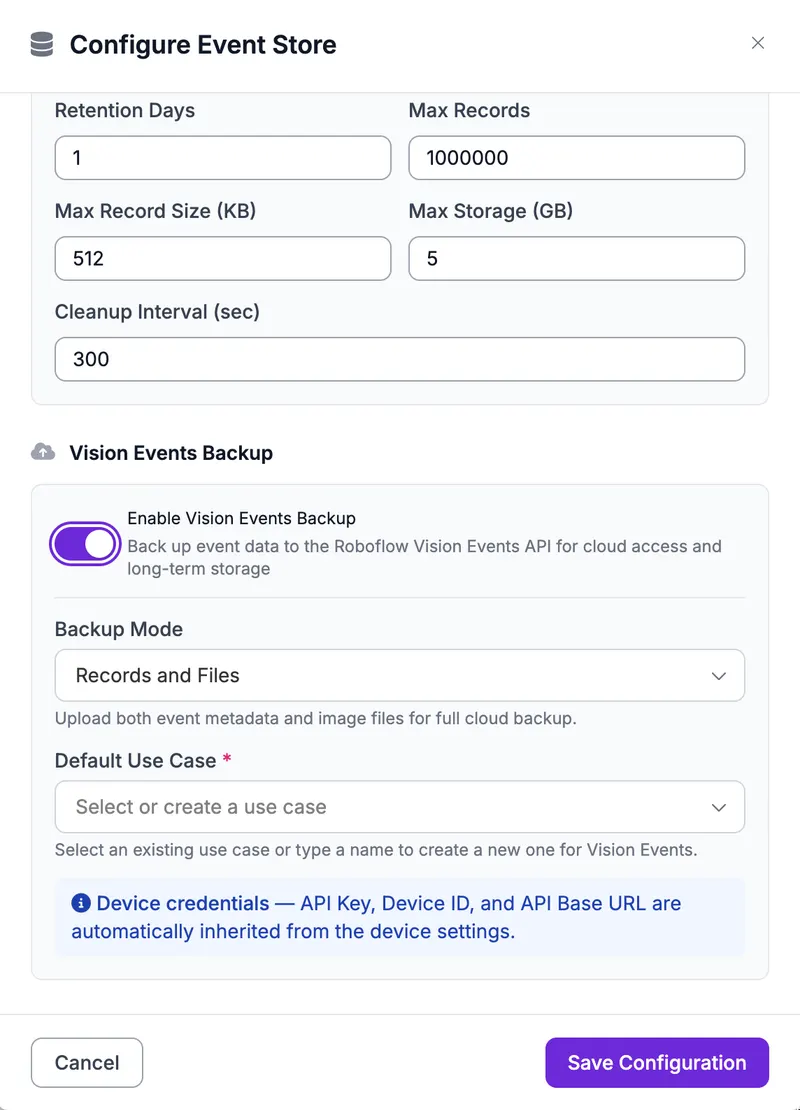
- Edge Device Backup - Users deploying Roboflow Edge devices will find it most convenient to configure automated backup from the local event store on device
Workflow Block
The recommended approach for most users. Add the Vision Event block to any Roboflow Workflow to automatically create events from inference results with no code needed.
The Roboflow Agent can set this up for you. When you ask the Agent to build a Workflow that runs a model, it automatically adds a Vision Events block and connects it to the right Use Case.
Setup
Open the Workflow Editor
Navigate to Workflows in your workspace and open the workflow you want to add events to.
Add the Vision Event Block
Search for "Vision Event" in the block catalog and add it to your workflow.
Connect Inputs
Connect the image input and model prediction outputs to the Vision Event block.
Configure the Use Case
Set the Use Case name (useCaseId). You can also map custom metadata from upstream blocks. Once a Use Case is selected, click "Open in Vision Events" below the dropdown to jump to that Use Case's events page in a new tab.
Deploy the Workflow
Deploy or update your workflow. Events are created automatically each time the workflow runs.
The Workflow block handles image upload and event creation in a single step.
REST API
For custom integrations or pipelines not using Workflows, you can send events directly via the REST API. For complete request and response schemas, see the Vision Events API Reference.
Authentication
All write endpoints require an API key with visionEvents.write or device.update scope. Pass the API key as a Bearer token:
Authorization: Bearer YOUR_API_KEYEnd-to-End Example: Upload Image + Create Event
You must create a Use Case before sending events. Events referencing a useCaseId that does not exist will be rejected.
When sending events via the API, you first upload the image, then create the event referencing the uploaded image.
Step 1: Upload the image
curl -X POST "https://api.roboflow.com/vision-events/upload" \
  -H "Authorization: Bearer YOUR_API_KEY" \
  -F "file=@inspection_photo.jpg"
Response:
{
  "success": true,
  "sourceId": "abc123def456",
  "url": "https://storage.googleapis.com/your-workspace/abc123def456/original.jpg"
}
Step 2: Create the event, referencing the uploaded image
curl -X POST "https://api.roboflow.com/vision-events" \
  -H "Content-Type: application/json" \
  -H "Authorization: Bearer YOUR_API_KEY" \
  -d '{
    "eventType": "quality_check",
    "useCaseId": "assembly-line-qa",
    "timestamp": "2026-03-30T14:30:00.000Z",
    "deviceId": "factory-cam-01",
    "streamId": "line-3",
    "images": [
      {
        "sourceId": "abc123def456",
        "objectDetections": [
          {
            "class": "defect",
            "x": 320,
            "y": 240,
            "width": 50,
            "height": 40,
            "confidence": 0.95
          }
        ]
      }
    ],
    "eventData": {
      "result": "fail"
    },
    "customMetadata": {
      "line_id": "line-3",
      "shift": "morning",
      "part_number": "PN-4421"
    }
  }'
Response:
{
  "eventId": "evt-789ghi",
  "created": true
}
Batch Create Events
Send up to 100 events in a single request using the batch endpoint:
curl -X POST "https://api.roboflow.com/vision-events/batch" \
  -H "Content-Type: application/json" \
  -H "Authorization: Bearer YOUR_API_KEY" \
  -d '{
    "events": [
      {
        "eventType": "quality_check",
        "useCaseId": "alksjdflaalsf32",
        "eventData": { "result": "pass" },
        "customMetadata": { "line_id": "line-1" }
      },
      {
        "eventType": "quality_check",
        "useCaseId": "alksjdflaalsf32",
        "eventData": { "result": "fail" },
        "customMetadata": { "line_id": "line-2" }
      }
    ]
  }'
Maximum 100 events per batch request.
Edge Device Backup
For enterprise deployments where connectivity may be intermittent, the edge device stores events locally and syncs them to Roboflow when connectivity is restored.
Edge Device Backup requires Deployment Manager. See the Deployment Manager documentation for setup instructions.
To enable Vision Events backup:
- Open Deployment Manager in your workspace
- Select the device to configure
- Enable Vision Events Backup in the device's Event Store configuration
- Events are written to the local event store on the device
- When the device reconnects, events sync to Roboflow automatically
Events appear in the Vision Events dashboard after sync completes.