To test a workflow, click the "Test Workflow" button at the top of the Workflow editor.

A pane will open from which you can test your Workflow:
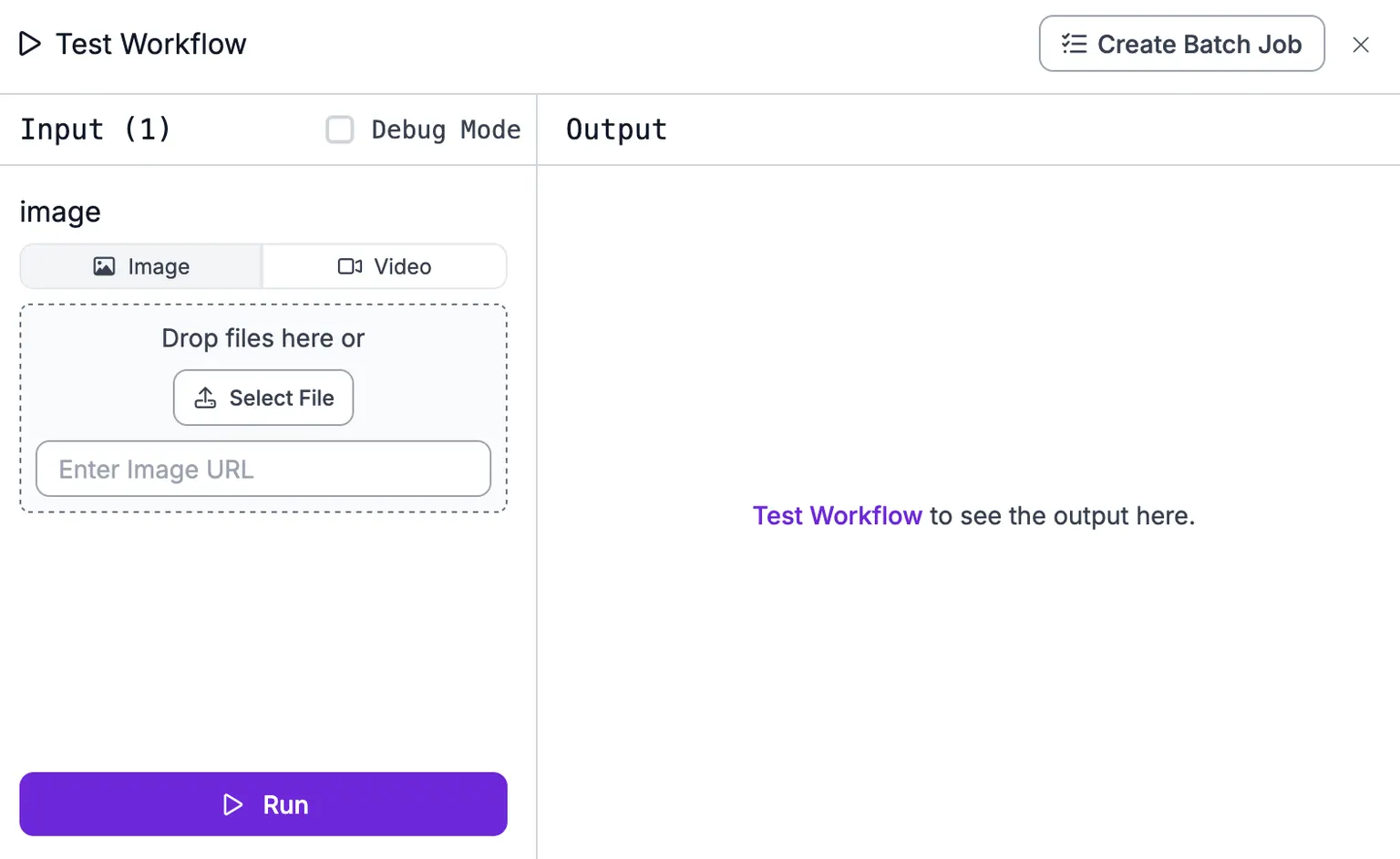
You can test Workflows on images and video streams.
- Images are supported on the Cloud API, Dedicated Deployments, and self-hosted servers.
- Video streams require a Dedicated Deployment or self-hosted server to test in the UI and deploy on.
You cannot test on video files in the browser.
To run on a video stream, your Workflow must declare an image output (for example, from a Visualization block). The stream sends that rendered image back for the preview, so a Workflow with only JSON outputs cannot be run on video.
Test on an Image
To test on an image, select the Image input tab then drag and drop an image into the "Drop files here" section of the page:
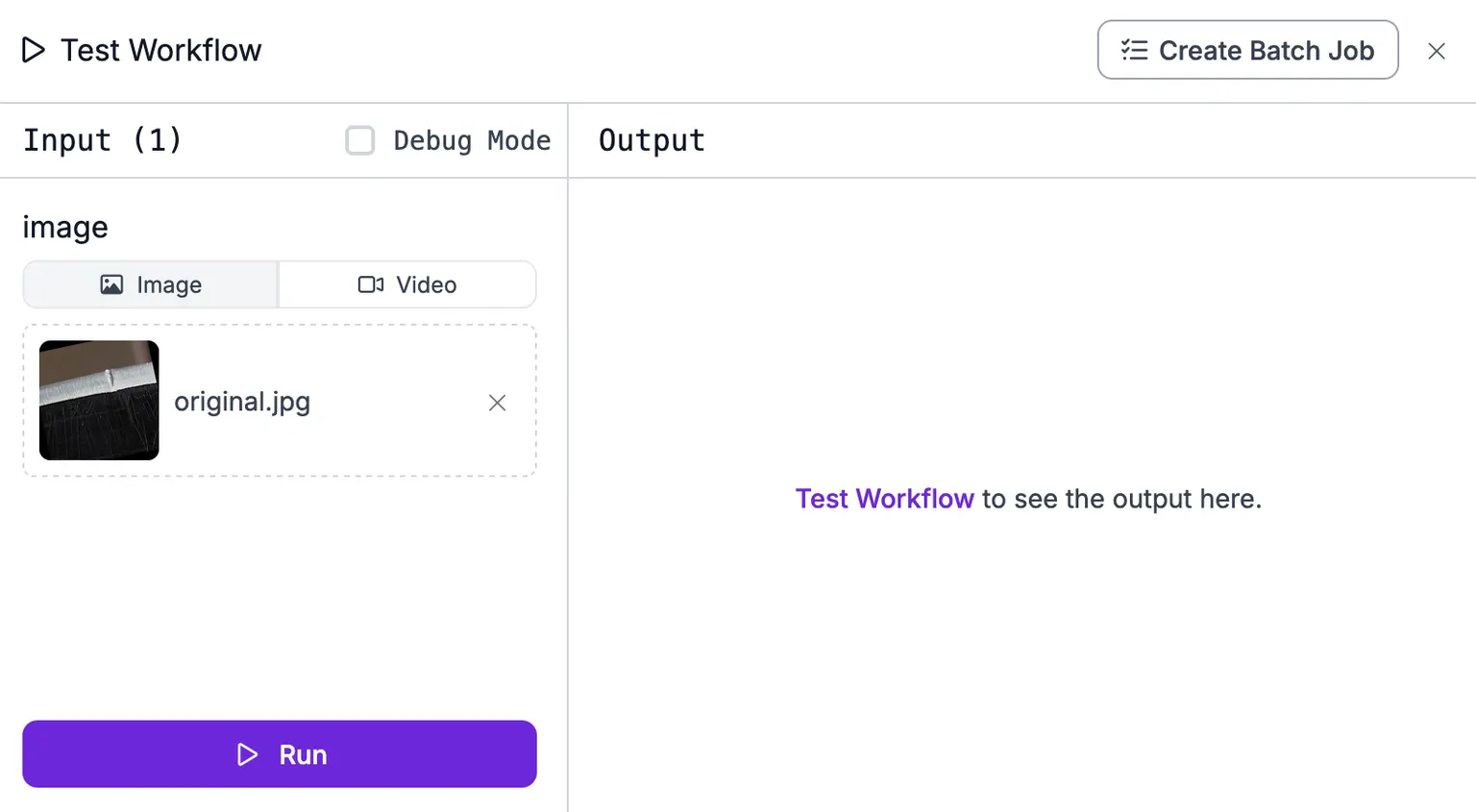
Image inputs accept JPG, PNG, and WEBP files. GIF images are not supported.
Then, click "Run" to run your Workflow.
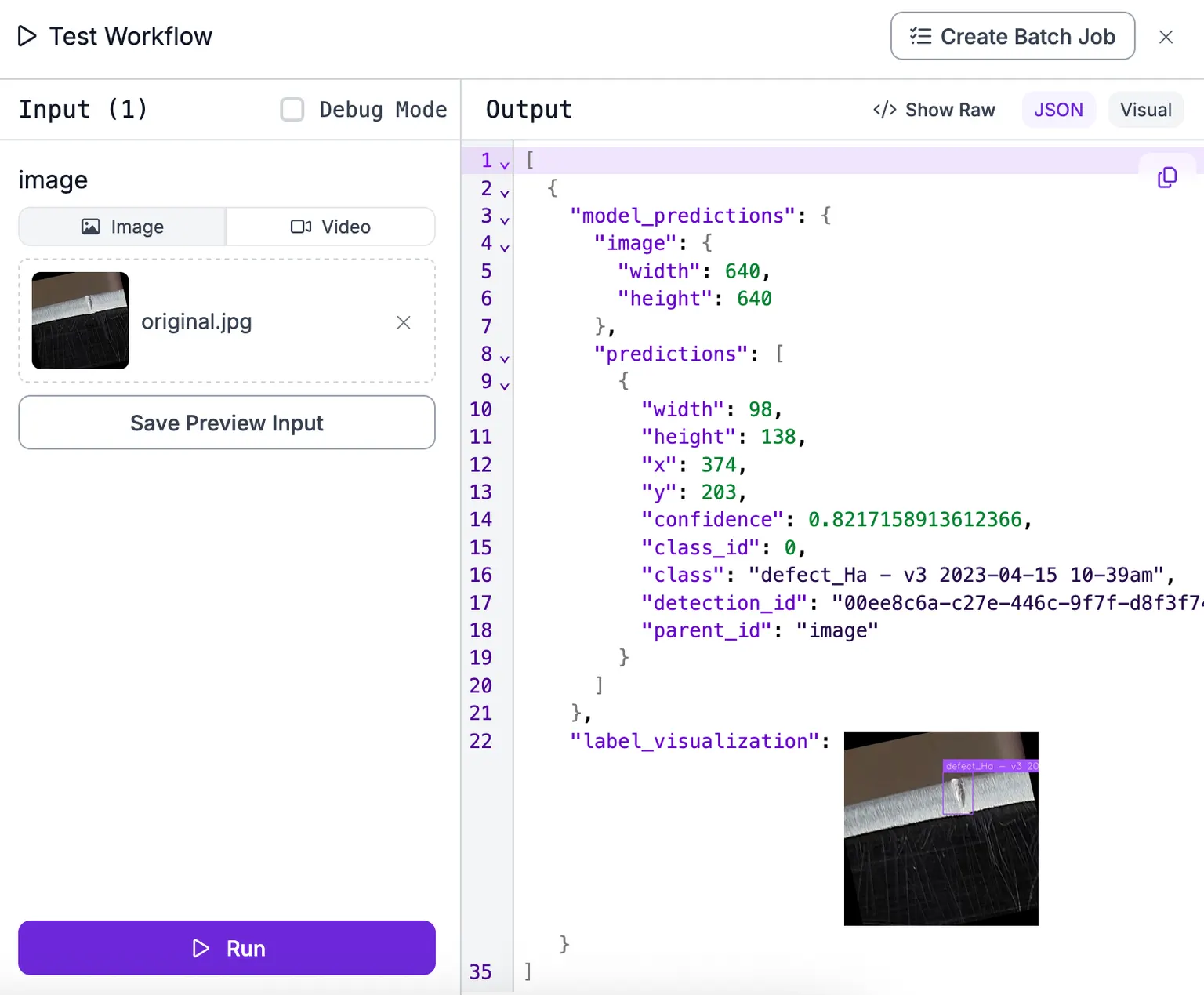
You will see the result of your Workflow on the right side of the testing interface.
By default, the Workflow will show JSON. This JSON contains all the values configured in the "Output" section of your Workflow.
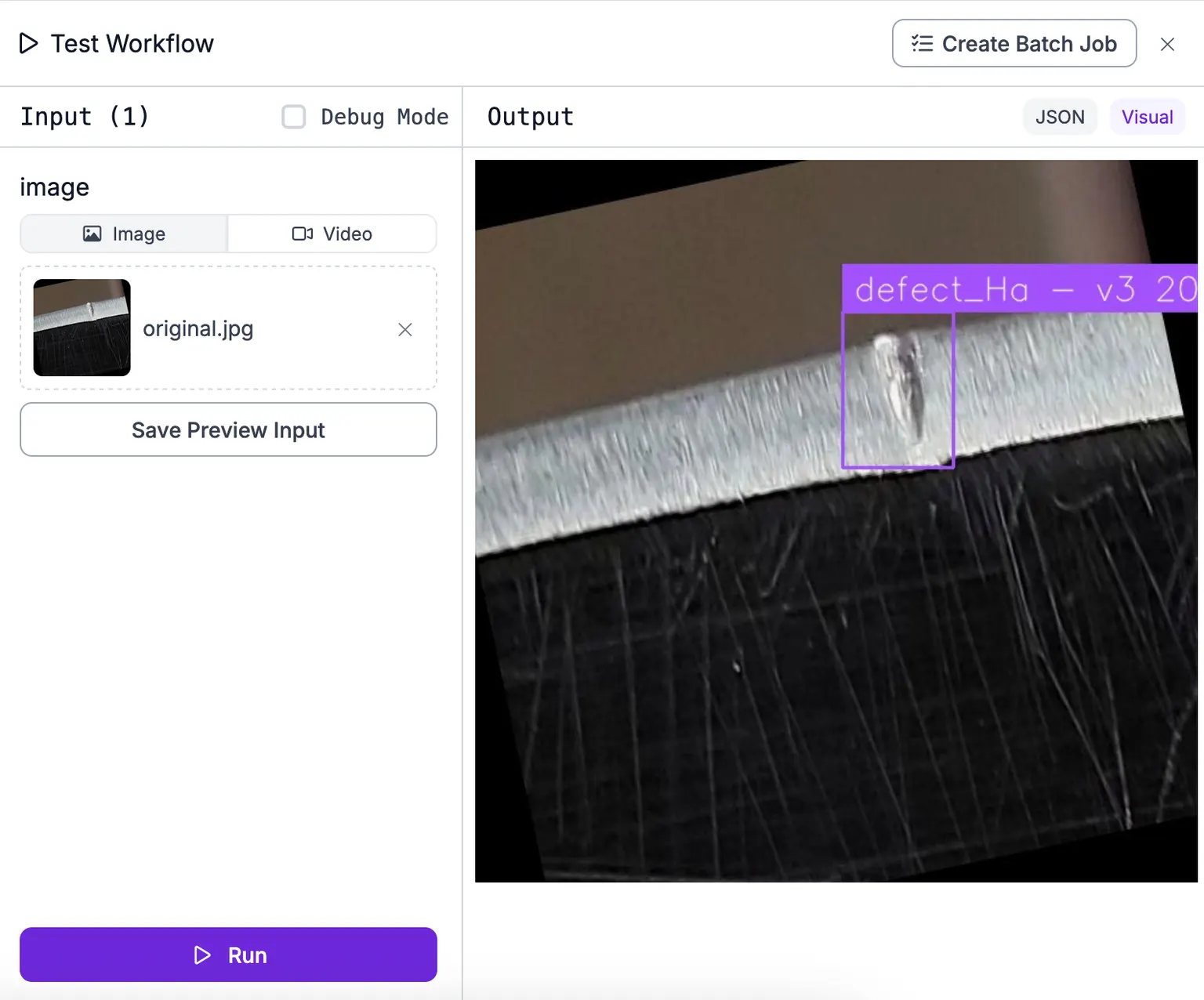
If your Workflow contains an image output (i.e. a Workflow that uses a Visualization block to show the results from a model), you can preview the images by selecting the “Visual” tab in the top left corner of the testing interface.
Reuse Block Results
Every test run recomputes every block. When you are editing one block, you can skip the blocks whose settings and inputs have not changed, which saves time and inference credits.
Click the gear icon in the testing pane and check "Use Block Cache". The setting is off by default and is saved per Workflow in your browser. With it on, a block shows a "Cached" badge when a stored result matches its current setup, and "Not Cached" when the next run computes it fresh. To make one block run every time, select it on the canvas and click "Uncache".
Caching applies only to test runs in the browser, not to deployed Workflows. Sink, notification, and secrets blocks, custom Python blocks, and disabled blocks always run.
Run Sink Blocks
Sink blocks write data outside the Workflow (ex: Roboflow Dataset Upload). They are turned off during a test run, so a test does not change your data by accident.
To let them run, check "Enable Sinks" in the testing pane before you click "Run".