InferencePipeline is the direct, in-process video interface in the inference Python package. Use it when your application embeds the Inference Library and needs direct Python access to video frames, custom inference logic, or sinks.
For applications that run an Inference Server or use Serverless, stream models and Workflows with the Inference SDK WebRTC client instead.
Quickstart
To use fine-tuned models with Inference, you will need a Roboflow API key. If you don't already have a Roboflow account, sign up for a free Roboflow account. Then, retrieve your API key from the Roboflow dashboard and set it in your coding environment:
export ROBOFLOW_API_KEY=<your api key>Learn more about Roboflow API keys.
Then, install Inference:
pip install inferenceIf you have an NVIDIA GPU, you can accelerate your inference with:
pip install --extra-index-url https://download.pytorch.org/whl/cu124 inference-gpu
# please adjust the --extra-index-url to the CUDA version installed in your OS
Next, create an Inference Pipeline:
# import the InferencePipeline interface
from inference import InferencePipeline
# import a built-in sink called render_boxes (sinks are the logic that happens after inference)
from inference.core.interfaces.stream.sinks import render_boxes

api_key = "YOUR_ROBOFLOW_API_KEY"

# Create an inference pipeline object
pipeline = InferencePipeline.init(
    # set the model id to an rfdetr model (pre-trained on COCO)
    model_id="rfdetr-large",
    # set the video reference (source of video), it can be a link/path to a video file, an RTSP stream url,
    # or an integer representing a device id (usually 0 for built in webcams)
    video_reference="https://storage.googleapis.com/com-roboflow-marketing/inference/people-walking.mp4",
    # tell the pipeline what to do with inference results. render_boxes is a built-in sink that renders boxes on top of the video
    on_prediction=render_boxes,
    # provide your roboflow api key for loading models from the roboflow api
    api_key=api_key,
)

# Start the pipeline and join the thread that processes the video stream.
pipeline.start()
pipeline.join()
What is a video reference?
Inference Pipelines can consume many different types of video streams:
- Device ID (integer): providing an integer instructs a pipeline to stream video from a local device, like a webcam. Typically, built-in webcams show up as device
0. - Video file (string): providing the path to a video file results in the pipeline reading every frame from the file, running inference with the specified model, then running the
on_predictionmethod with each set of resulting predictions. - Video URL (string): providing a video URL is equivalent to providing a video file path and avoids needing to first download the video.
- RTSP URL (string): providing an RTSP URL results in the pipeline streaming frames from an RTSP stream as fast as possible, then running the
on_predictioncallback on the latest available frame. - A list of elements that may be any of the values described above.
How InferencePipeline works
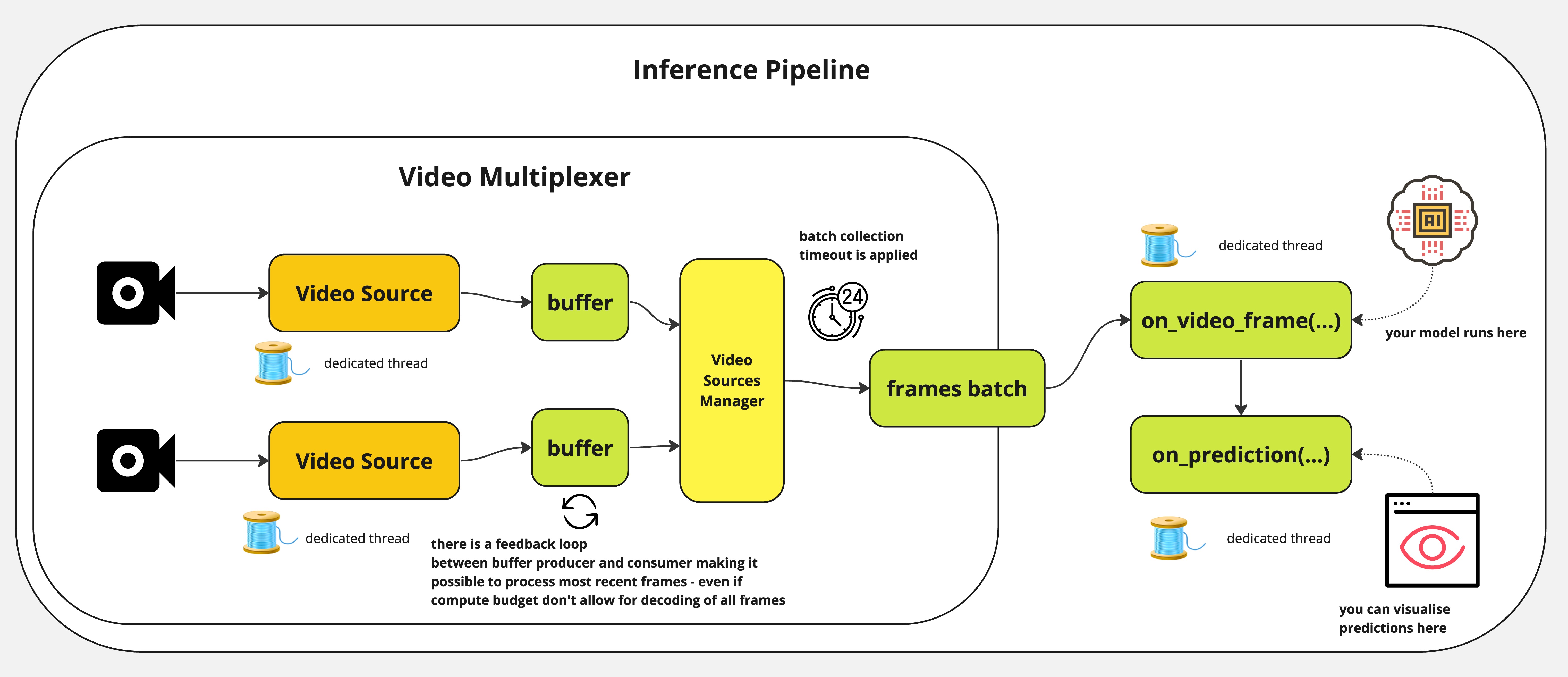
InferencePipeline spins up a video source consumer thread for each provided video reference. Frames from videos are grabbed by a video multiplexer that awaits batch_collection_timeout (if a source does not provide a frame, a smaller batch is passed to on_video_frame(...), but missing frames and predictions are filled with None before passing to on_prediction(...)). on_prediction(...) may work in SEQUENTIAL mode (only one element at once), or BATCH mode (all batch elements at a time); this is controlled by the sink_mode parameter.
For static video files, InferencePipeline processes all frames by default. For streams, it is possible to drop frames from the buffers in favour of always processing the most recent data (when model inference is slow, more frames can accumulate in the buffer; stream processing drops older frames and only processes the most recent one).
To enhance stability, when processing streams, video sources are automatically re-connected once connectivity is lost during processing. That is meant to prevent failures in a production environment where the pipeline can run for long hours and needs to gracefully handle source downtime.
Custom inference logic
InferencePipeline supports running custom inference logic. Instead of passing a model ID, you can pass a custom callable. This callable should accept a VideoFrame and return a dictionary with results from the processing (as the on_video_frame handler). It can be model predictions or the results of any other processing you wish to execute.
It is important to note that the sink being used (the on_prediction handler) must be adjusted to the specific format of the on_video_frame(...) response. This way, you can shape video processing however you want.
# This is example, reference implementation - you need to adjust the code to your purposes
import os
import json
from inference.core.interfaces.camera.entities import VideoFrame
from inference import InferencePipeline
from typing import Any, List

TARGET_DIR = "./my_predictions"

class MyModel:

  def __init__(self, weights_path: str):
    self._model = your_model_loader(weights_path)

  # before v0.9.18
  def infer(self, video_frame: VideoFrame) -> Any:
    return self._model(video_frame.image)

  # after v0.9.18
  def infer(self, video_frames: List[VideoFrame]) -> List[Any]:
    # result must be returned as list of elements representing model prediction for single frame
    # with order unchanged.
    return self._model([v.image for v in video_frames])

def save_prediction(prediction: dict, video_frame: VideoFrame) -> None:
  with open(os.path.join(TARGET_DIR, f"{video_frame.frame_id}.json")) as f:
    json.dump(prediction, f)

my_model = MyModel("./my_model.pt")

pipeline = InferencePipeline.init_with_custom_logic(
  video_reference="./my_video.mp4",
  on_video_frame=my_model.infer,
  on_prediction=save_prediction,
)

# start the pipeline
pipeline.start()
# wait for the pipeline to finish
pipeline.join()
InferencePipeline with Workflows
InferencePipeline can also run Roboflow Workflows, as shown below:
from inference import InferencePipeline
from inference.core.interfaces.camera.entities import VideoFrame
from inference.core.interfaces.stream.sinks import render_boxes

def workflows_sink(
    predictions: dict,
    video_frame: VideoFrame,
) -> None:
    render_boxes(
        predictions["predictions"][0],
        video_frame,
        display_statistics=True,
    )


# here you may find very basic definition of workflow - with a single object detection model.
workflow_specification = {
    "specification": {
        "version": "1.0",
        "inputs": [
            {"type": "InferenceImage", "name": "image"},
        ],
        "steps": [
            {
                "type": "ObjectDetectionModel",
                "name": "step_1",
                "image": "$inputs.image",
                "model_id": "rfdetr-small",
                "confidence": 0.5,
            }
        ],
        "outputs": [
            {"type": "JsonField", "name": "predictions", "selector": "$steps.step_1.*"},
        ],
    }
}
pipeline = InferencePipeline.init_with_workflow(
    video_reference="./my_video.mp4",
    workflow_specification=workflow_specification,
    on_prediction=workflows_sink,
    image_input_name="image",  # adjust according to name of WorkflowImage input you define
    video_metadata_input_name="video_metadata" # AVAILABLE from v0.17.0! adjust according to name of WorkflowVideoMetadata input you define
)

# start the pipeline
pipeline.start()
# wait for the pipeline to finish
pipeline.join()
You can initialise InferencePipeline with a Workflow registered in the Roboflow app by providing your workspace_name and workflow_id:
pipeline = InferencePipeline.init_with_workflow(
    video_reference="./my_video.mp4",
    workspace_name="<your_workspace>",
    workflow_id="<your_workflow_id_to_be_found_in_workflow_url>",
    on_prediction=workflows_sink,
)
Workflows profiling. You can profile your Workflow execution inside InferencePipeline by exporting the environment variable ENABLE_WORKFLOWS_PROFILING=True. Additionally, you can tune the number of frames kept in the profiler buffer via the environment variable WORKFLOWS_PROFILER_BUFFER_SIZE. init_with_workflow(...) also takes a profiling_directory parameter that dictates where to save the trace.
Sinks
Sinks define what an Inference Pipeline should do with each prediction. A sink is a function with the following signature:
from typing import Union, List, Optional
from inference.core.interfaces.camera.entities import VideoFrame

def on_prediction(
    predictions: Union[dict, List[Optional[dict]]],
    video_frame: Union[VideoFrame, List[Optional[VideoFrame]]],
) -> None:
    for prediction, frame in zip(predictions, video_frame):
        if prediction is None:
            # EMPTY FRAME
            continue
        # SOME PROCESSING
The arguments are:
predictions: a dictionary (or list of dicts when using multiple video sources) that is the response object resulting from a call to a model'sinfer(...)method.video_frame: aVideoFrameobject (or list ofVideoFrames) containing metadata and pixel data from the video frame.
Usage
You can also make on_prediction accept other parameters that configure its behaviour, but those need to be latched into the function closure before injection into InferencePipeline init methods.
from functools import partial
from inference.core.interfaces.camera.entities import VideoFrame
from inference import InferencePipeline


def on_prediction(
    predictions: dict,
    video_frame: VideoFrame,
    my_parameter: int,
) -> None:
    # you need to implement your logic here, with `my_parameter` used
    pass

pipeline = InferencePipeline.init(
  video_reference="./my_video.mp4",
  model_id="rfdetr-small",
  on_prediction=partial(on_prediction, my_parameter=42),
)
Custom sink tutorial
Let's walk through building a custom sink step by step. First, a simple sink that prints the frame ID:
from inference import InferencePipeline
# import VideoFrame for type hinting
from inference.core.interfaces.camera.entities import VideoFrame

# define sink function
def my_custom_sink(predictions: dict, video_frame: VideoFrame):
    # print the frame ID of the video_frame object
    print(f"Frame ID: {video_frame.frame_id}")

pipeline = InferencePipeline.init(
    model_id="rfdetr-large",
    video_reference="https://storage.googleapis.com/com-roboflow-marketing/inference/people-walking.mp4",
    on_prediction=my_custom_sink,
)

pipeline.start()
pipeline.join()
The output should look something like:
Frame ID: 1
Frame ID: 2
Frame ID: 3
Now let's do something more useful and use our custom sink to visualize predictions with Supervision:
from inference import InferencePipeline
from inference.core.interfaces.camera.entities import VideoFrame

# import opencv to display our annotated images
import cv2
# import supervision to help visualize our predictions
import supervision as sv

# create a bounding box annotator and label annotator to use in our custom sink
label_annotator = sv.LabelAnnotator()
box_annotator = sv.BoxAnnotator()

def my_custom_sink(predictions: dict, video_frame: VideoFrame):
    # get the text labels for each prediction
    labels = [p["class"] for p in predictions["predictions"]]
    # load our predictions into the Supervision Detections api
    detections = sv.Detections.from_inference(predictions)
    # annotate the frame using our supervision annotator, the video_frame, the predictions (as supervision Detections), and the prediction labels
    image = label_annotator.annotate(
        scene=video_frame.image.copy(), detections=detections, labels=labels
    )
    image = box_annotator.annotate(image, detections=detections)
    # display the annotated image
    cv2.imshow("Predictions", image)
    cv2.waitKey(1)

pipeline = InferencePipeline.init(
    model_id="rfdetr-large",
    video_reference="https://storage.googleapis.com/com-roboflow-marketing/inference/people-walking.mp4",
    on_prediction=my_custom_sink,
)

pipeline.start()
pipeline.join()
You should see something like this on your screen:
Custom sinks (advanced)
To create a custom sink, define a new function with the appropriate signature.
from typing import Union, List, Optional, Any
from inference.core.interfaces.camera.entities import VideoFrame

def on_prediction(
    predictions: Union[Any, List[Optional[dict]]],
    video_frame: Union[VideoFrame, List[Optional[VideoFrame]]],
) -> None:
    if not issubclass(type(predictions), list):
      # this is required to support both sequential and batch processing with single code
      # if you use only one mode - you may create function that handles with only one type
      # of input
      predictions = [predictions]
      video_frame = [video_frame]
    for prediction, frame in zip(predictions, video_frame):
        if prediction is None:
            # EMPTY FRAME
            continue
        # SOME PROCESSING
InferencePipeline provides a sink_mode parameter to control how predictions are passed to your sink. With SinkMode.SEQUENTIAL, each frame and prediction triggers a separate call to the sink. With SinkMode.BATCH, a list of frames and predictions is provided to the sink, always aligned in the order of video sources, with None values in the place of video frames or predictions that were skipped due to batch_collection_timeout. SinkMode.ADAPTIVE is the default mode: for a single video input, the pipeline behaves as if running in SinkMode.SEQUENTIAL. To handle multiple videos, the sink needs to accept predictions: List[Optional[dict]] and video_frame: List[Optional[VideoFrame]]. It is also possible to process multiple videos using simpler sinks, but then SinkMode.SEQUENTIAL should be used, causing the sink to be called on each prediction element separately.
Why is there Optional in List[Optional[dict]] and List[Optional[VideoFrame]]?
It may happen that it is not possible to collect video frames from all the video sources (for instance when one of the sources disconnects and re-connection is attempted). predictions and video_frame are ordered to match the order of the video_reference list of InferencePipeline, and None elements appear in the position of missing frames. We provide this information to the sink, as some sinks may require all predictions and video frames from the batch to be provided (even if missing). For example, the render_boxes(...) sink needs that information to maintain the position of frames in the tile mosaic.
Prediction format
Predictions are provided to the sink as a dictionary containing the key predictions, holding predictions either for a single frame or a batch of frames. The content depends on which model runs behind InferencePipeline; for Roboflow models it comes as a dict or list of dicts.
Depending on the model output, predictions look different. You must adjust the sink to the prediction format. For instance, a Roboflow object detection prediction contains the following keys:
x: the center x coordinate of the predicted bounding box in pixelsy: the center y coordinate of the predicted bounding box in pixelswidth: the width of the predicted bounding box in pixelsheight: the height of the predicted bounding box in pixelsconfidence: the confidence value of the prediction (between 0 and 1)class: the predicted class nameclass_id: the predicted class ID
Built-in sinks
Inference has several sinks built in that are ready to use (see inference/core/interfaces/stream/sinks.py).
render_boxes(...)
The render boxes sink visualizes predictions and overlays them on a stream. It uses Supervision annotators to render the predictions and display the annotated frame. It only works for Roboflow models that yield detection-based output (object-detection, instance-segmentation, keypoint-detection), and not all details of predictions may be displayed by default (like detected keypoints).
UDPSink(...)
The UDP sink broadcasts predictions over a UDP port. This port can be listened to by client code for further processing. It uses Python's default JSON serialisation, so predictions must be serializable, otherwise an error is thrown.
multi_sink(...)
The multi-sink combines multiple sinks so that multiple actions can happen on a single inference result.
VideoFileSink(...)
The video file sink visualizes predictions, similar to the render_boxes(...) sink; however, instead of displaying the annotated frames, it saves them to a video file. All constraints related to render_boxes(...) apply.
Model weights download
Model weights are downloaded automatically the first time you run inference. You can pre-download weights by initializing the pipeline once while connected to the internet:
from inference import InferencePipeline

pipeline = InferencePipeline.init(
    model_id="rfdetr-base",
    video_reference=0,
    on_prediction=lambda predictions, video_frame: None,
    api_key="YOUR_ROBOFLOW_API_KEY",
)

pipeline.start()
pipeline.terminate()

print("Model weights downloaded successfully!")
Alternatively, use get_model() to pre-download weights:
from inference import get_model

get_model("rfdetr-base")
You can verify cached models by checking the cache directory:
ls -lh /tmp/cacheYou should see directories for each cached model, typically named with the model ID.
Read more about weights caching, persistent storage, and Docker configuration.
Other pipeline configuration
Inference Pipelines are highly configurable. Configuration options include:
max_fps: used to set the maximum rate of frame processing.confidence: confidence threshold used for inference.iou_threshold: IoU threshold used for inference.video_source_properties: optional dictionary of properties to configure the video source, corresponding to cv2 VideoCapture propertiescv2.CAP_PROP_*. See the OpenCV documentation for a list of all possible properties.
from inference import InferencePipeline
pipeline = InferencePipeline.init(
    ...,
    max_fps=10,
    confidence=0.75,
    iou_threshold=0.4,
    video_source_properties={
        "frame_width": 1920.0,
        "frame_height": 1080.0,
        "fps": 30.0,
    },
)
For the full list of Inference Pipeline parameters, see the source at inference/core/interfaces/stream/inference_pipeline.py.