Authorize the Roboflow Support team to access your workspace. This authorization allows our team to directly review the projects in your workspace and help with debugging and/or issue resolution.
Only accounts with admin or creator privileges are capable of granting workspace access to Roboflow Support.
If your account has labeler or reviewer permissions, please have an admin or creator from your workspace reach out to support@roboflow.com to grant workspace access.
In App Chat
In the chat flow, you will be prompted with the question below:
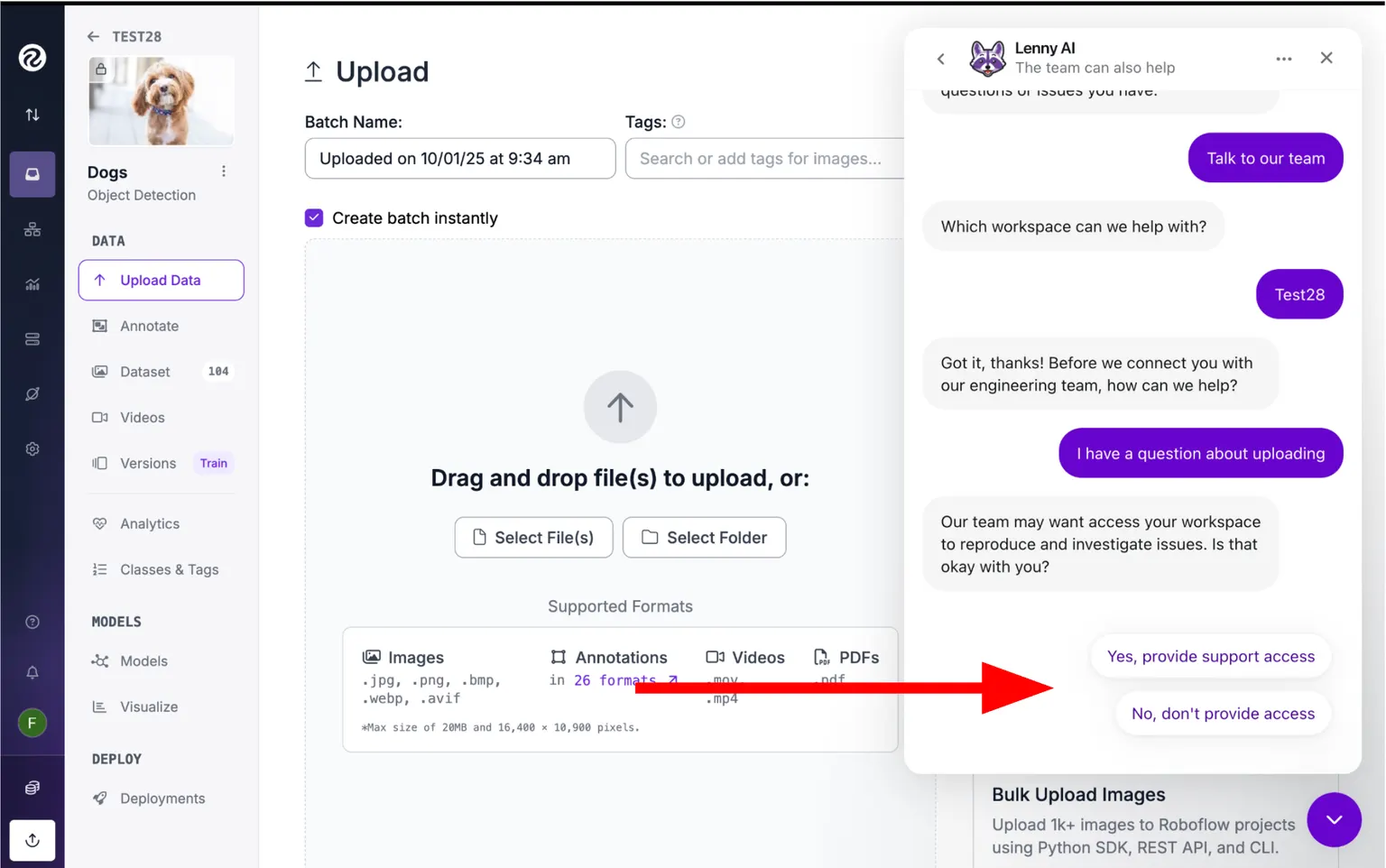
Select "Yes, provide support access" to authorize the Roboflow Support team to access the projects in your workspace and help with debugging and/or issue resolution.
When contacting Roboflow Support (support@roboflow.com), please include the sentence: "I grant Roboflow Support permission to access the workspace."
This explicitly authorizes the Roboflow Support team to access the projects in your workspace and help with debugging and/or issue resolution.
Ticket
In the ticket submission flow, you will be prompted with the question below:
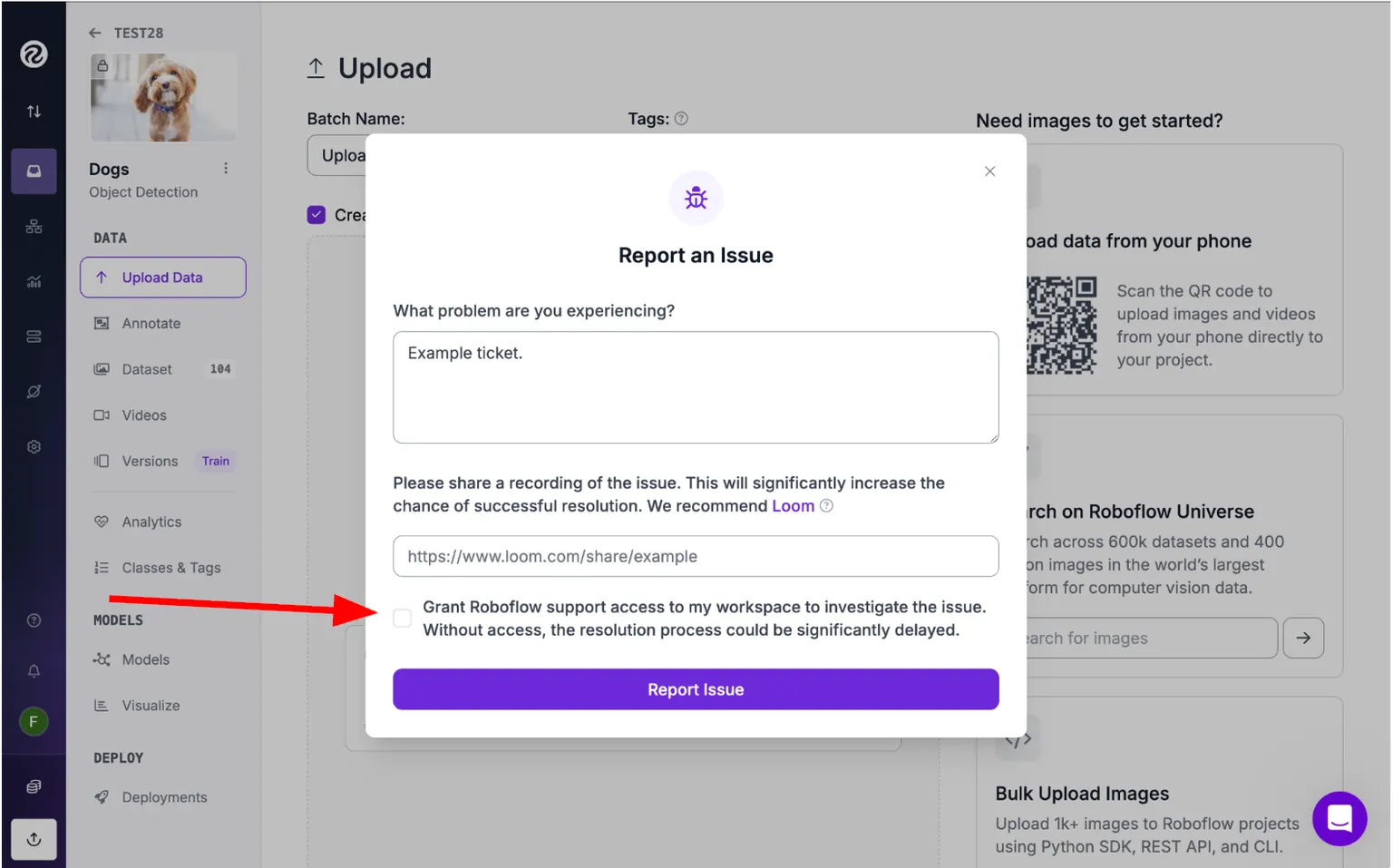
Select the "Grant Roboflow Support access" checkbox to authorize the Roboflow Support team to access the projects in your workspace and help with debugging and/or issue resolution.
See and Remove Support Access
Roboflow staff are listed apart from your own team. On the Members settings page, open the "Roboflow Support Users" section to see everyone from Roboflow who has access. To remove one, click the three dots next to their name and choose "Remove From Workspace". Only a workspace owner can remove them.
Support users do not appear in the team avatars at the top of the Projects and Workflows tabs, and they do not count against your team member seat limit.