About
Billing Folders is a premium feature available for Enterprise plans. To enable Billing Folders for your workspace, contact the Roboflow sales team or your account representative. For more information on available plans, visit our pricing page.
When enabled, all usage (ex: training, inference, image storage, labeling, and more) is automatically attributed to the folder that contains the project being used. This gives organizations granular cost visibility and spending control across teams, departments, or clients.
How Usage Attribution Works
When Billing Folders is enabled, each folder in your workspace receives its own API key. All billable usage that occurs within a folder's projects is tracked against that folder's API key. This means you can see exactly how much each folder is consuming in your usage reports and dashboard.
Usage attribution is automatic. You do not need to manually assign usage to folders. It flows from the project to its parent folder.
API or Deployment Usage
When you use Roboflow services using an API key (including, but not limited to, the Serverless Cloud API, Batch Processing, etc), the billing attribution follows the API key in the request, not the project's folder.
A request made with a workspace-level API key is attributed to the workspace, even if the model used belongs to a project that lives in a folder. To attribute direct API or batch usage to a folder, request with that folder's API key.
Image Storage Attribution
Image storage is attributed to the folder that contains the project(s) referencing the image.
If an image is shared across multiple projects within the same folder (or within subfolders of the same parent), storage is attributed to the deepest folder that contains all of the projects using that image:
Workspace
├── Folder A
│   ├── Project 1  ← image.jpg
│   └── Project 2  ← image.jpg (shared)
└── Folder B
    └── Project 3

image.jpg storage is attributed to Folder A (the deepest folder containing all projects that reference it)
If an image is shared across projects in different root folders with no common parent folder, storage is attributed at the workspace level:
Workspace
├── Folder A
│   └── Project 1  ← image.jpg
└── Folder B
    └── Project 2  ← image.jpg (shared)

image.jpg storage is attributed to the Workspace (no single folder contains both projects)
Folder Action Menu
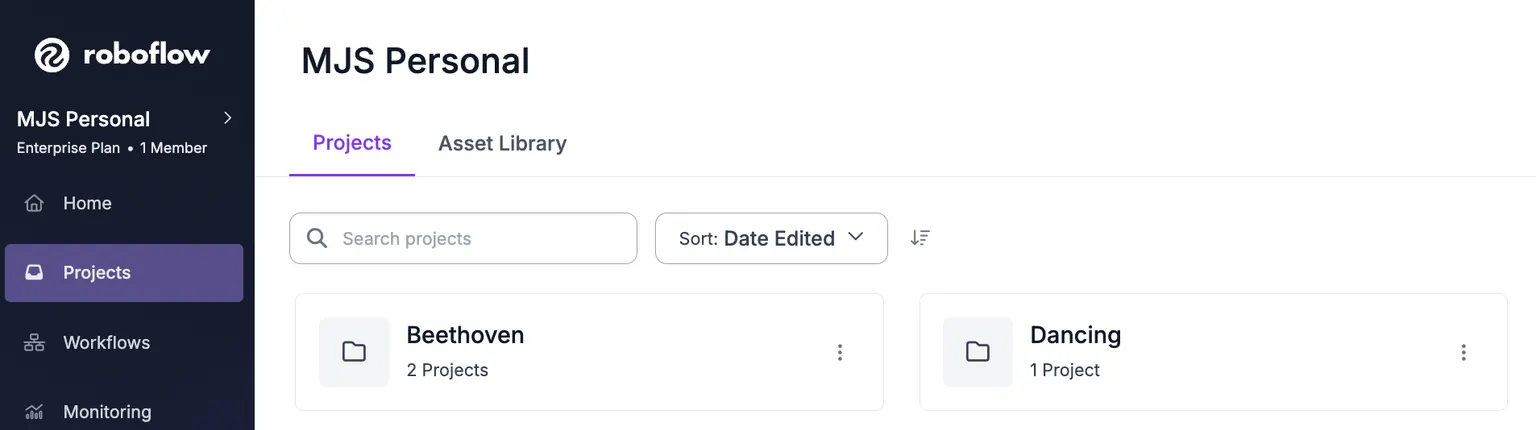
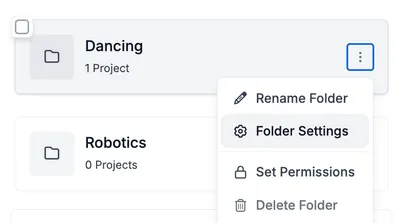
Folder controls live in the folder's action menu (the three-dot icon). You can open it from the folder list or from the header of the folder's projects page, next to the folder name. It holds "Folder Usage", "Folder API Key", and "Set Permissions".
Viewing Usage
You can view usage, including broken down by folder, in your workspace's credit usage page and switch the attribution filter to Folders. Learn how to filter usage to a billing folder or how to view usage in general.
To jump straight to one folder's usage, select "Folder Usage" from that folder's action menu.
Pausing and Resuming Folder Usage
Workspace administrators can temporarily pause all billable usage within a folder. This is useful for controlling costs or preventing accidental usage.
Pausing a Folder
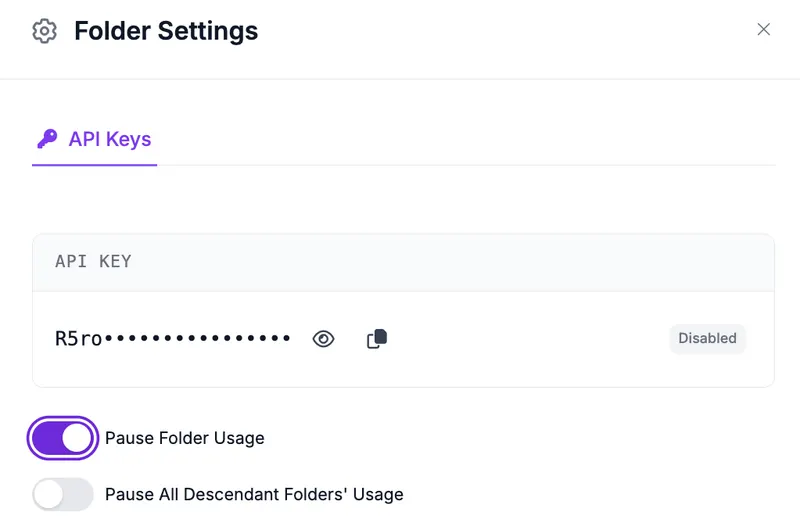
To pause a folder, select "Folder API Key" from the folder's action menu, toggle "Pause Folder Usage", then confirm in the message that appears.
When a folder is paused:
- All API keys belonging to that folder are disabled
- Any API request that would incur usage against that folder is rejected with a
423 Lockedstatus code - No new billable usage is recorded for the folder
You can also pause a folder and all of its descendant folders at once by toggling "Pause All Descendant Folders' Usage". This disables API keys for the selected folder and every folder nested beneath it.
Resuming a Folder
To resume a paused folder, reopen the "Folder API Key" modal, toggle the pause control off, then confirm. This re-enables the folder's API keys and restores normal operation. Similarly, you can resume a folder and all of its descendants at once.
Resuming only affects keys that were paused by the folder pause feature. Keys that were disabled for other reasons are not affected.
Folder API Keys
When Billing Folders is enabled, each folder automatically receives its own API key. These keys are used internally to track which folder billable usage belongs to.
- Viewing keys: Select "Folder API Key" from the folder's action menu to see the API keys associated with a folder.
- Automatic creation: API keys are created automatically when folders are created or when Billing Folders is first enabled on your workspace. You do not need to create them manually.
Common Scenarios
| Scenario | What Happens |
|---|---|
| Moving a project to a different folder | Future usage for that project is attributed to the new folder. Historical usage remains attributed to the original folder. |
| Deleting a folder | The folder is removed from your workspace. Child projects and sub-folders are reassigned to the parent folder. Historical usage data is preserved in billing reports. |
| Creating new folders | New folders automatically receive an API key for billing attribution. No additional setup is required. |
| Disabling Billing Folders | Folder-level attribution stops. New usage is tracked at the workspace level only. Historical usage data from the folder billing period is preserved. |
Usage Report API
You can query billing usage data programmatically using the billing usage report REST API.
HTTP API
Endpoint
POST https://api.roboflow.com/{workspace_url}/billing-usage-report
Authentication
API key with workspaceStats.read scope, passed as a query parameter (?api_key=YOUR_API_KEY).
Rate Limit
10 requests per minute per API key.
Request Parameters <a href="#request-parameters" id="request-parameters"></a>
All parameters are passed in the request body as JSON. All are optional.
| Parameter | Type | Default | Description |
|---|---|---|---|
startAt | string (ISO 8601) | 7 days ago | Start of the reporting period (inclusive) |
endAt | string (ISO 8601) | Now | End of the reporting period (exclusive) |
api_key_prefixes | string or string[] | All keys | Filter to specific API key prefix(es). Each prefix is the first 5 characters of the full API key (e.g., rf_ab for key rf_abCdEfGhIjK...). Must be an exact match. |
features | string or string[] | All features | Filter to specific billing feature(s) |
Examples <a href="#examples" id="examples"></a>
Default is last 7 days, all features, all api keys.
curl -X POST "https://api.roboflow.com/my-workspace/billing-usage-report?api_key=$ROBOFLOW_API_KEY"curl -X POST "https://api.roboflow.com/my-workspace/billing-usage-report?api_key=$ROBOFLOW_API_KEY" \
-H "Content-Type: application/json" \
-d '{
"startAt": "2025-01-01T00:00:00.000Z",
"endAt": "2025-02-01T00:00:00.000Z"
}'curl -X POST "https://api.roboflow.com/my-workspace/billing-usage-report?api_key=$ROBOFLOW_API_KEY" \
-H "Content-Type: application/json" \
-d '{
"features": ["train", "serverless-inference-run"]
}'curl -X POST "https://api.roboflow.com/my-workspace/billing-usage-report?api_key=$ROBOFLOW_API_KEY" \
-H "Content-Type: application/json" \
-d '{
"startAt": "2025-01-01T00:00:00.000Z",
"endAt": "2025-02-01T00:00:00.000Z",
"api_key_prefixes": ["rf_ab", "rf_de"],
"features": ["train", "serverless-inference-run"]
}'Response Schema <a href="#response-schema" id="response-schema"></a>
The API returns a JSON array of usage records:
[
    {
        "api_key_prefix": "rf_ab",
        "feature": "train",
        "total_credits_used": 150.5,
        "usage_events": 12,
        "earliest_usage": "2025-01-02T10:30:00.000Z",
        "latest_usage": "2025-01-28T14:15:00.000Z",
        "billing_entity_id": "folder-id-123",
        "billing_entity_name": "My Project Folder",
        "billing_entity_type": "folder"
    }
]| Field | Type | Description |
|---|---|---|
api_key_prefix | string | The first 5 characters of the API key associated with the usage |
feature | string | The billing feature identifier (e.g., "train", "serverless-inference-run") |
total_credits_used | number | Total credits consumed for this key/feature combination |
usage_events | number | Count of individual usage events |
earliest_usage | string | ISO timestamp of the first usage event in the range |
latest_usage | string | ISO timestamp of the last usage event in the range |
billing_entity_id | string | The folder ID or workspace ID that owns this usage |
billing_entity_name | string | Human-readable name of the billing entity |
billing_entity_type | string | Either "folder" or "workspace" |
Error Codes <a href="#error-codes" id="error-codes"></a>
| Status | Description |
|---|---|
400 | Billing Folders is not enabled for this workspace, or invalid request parameters |
401 | Invalid or missing API key, or insufficient permissions |
423 | The folder's usage is paused |
429 | Rate limit exceeded (10 requests per minute) |